

Welcome back to our comprehensive series on Acoustics CFD. In our first blog (Acoustics & Aeroacoustics in CFD: The Ultimate Guide), we explored the fundamental physics of sound and how turbulent flow generates noise. We learned about Lighthill’s acoustic analogy and the different types of sound sources. Now, it is time to move from theory to practice and learn how to set up the powerful acoustic models in ANSYS Fluent including:
- Ffowcs-Williams & Hawkings (FWH) model
- Broadband Noise Source models
- Wave Equation model
This practical guide will walk you through the main panels and essential settings for Aeroacoustics Fluent simulations. We will focus on the most important models available for engineering applications. You will learn how the Ffowcs-Williams & Hawkings (FWH) model predicts noise at a distance, and how Broadband Noise Source models provide fast acoustic estimates. We will also briefly cover the Wave Equation model for sound in enclosed spaces. By the end of this article, you will understand when to use each model and how to configure them for your projects.
A critical difference between these models is the solver requirement. The FWH model uses an acoustic analogy that needs time-varying pressure data to predict sound. For this reason, it always requires a transient solver. In contrast, the Broadband Noise Sources models offer a great advantage for quick analysis. As stated in our references, this model does not need a transient solution. It can use statistical methods to get noise data from a steady-state flow solution. This makes it use less computer power and perfect for early design comparisons.
To begin your Aeroacoustics CFD analysis, you can find all these tools in one central location within the software. Navigate to:
Problem Setup → Models → Acoustics
From here, you can select the appropriate model for your simulation.

Figure 1: Visualizing the Aeroacoustic noise distribution around a Horizontal-Axis Wind Turbine (HAWT), a common application for Acoustics CFD analysis in ANSYS Fluent.
Ffowcs Williams & Hawkings (FWH) Model
The Ffowcs Williams & Hawkings (FWH) model is the most widely used tool in Acoustics Fluent for predicting sound that travels far away from its source. It is an acoustic analogy, which means it separates the complex flow simulation from the sound analysis. First, you must solve the unsteady flow field near the noise source. The FWH model then uses this time-varying data to project the sound to any location in the far field. This method is highly efficient because it avoids the need to have a massive computational mesh that extends to the far-field listener.
There are two critical rules for using the FWH model Fluent:
- It requires a transient flow solution. Sound is a pressure wave that changes with time, so a steady-state solution cannot provide the necessary input data. You must use a transient solver like URANS, SAS, or LES.
- It is only for external aeroacoustics. The FWH model is designed for open-space problems, like the noise from a vehicle, aircraft, or wind turbine. As confirmed in our references, it cannot be used to predict noise inside enclosed spaces like pipes or cabins.

Figure 2: The FWH model is designed for external aeroacoustics, such as predicting the far-field noise from vehicles, aircraft, or turbines propagating in open space.
How to Set Up the FWH Model in Fluent
Once your transient flow simulation is complete and showing physically realistic unsteady behavior, you can set up the FWH model. The setup is done through the main Acoustics Model panel, which is shown in the image below. In the window that appears, you will select Ffowcs Williams & Hawkings. This action activates the main panel where you will control the entire Ffowcs Williams Hawkings setup.
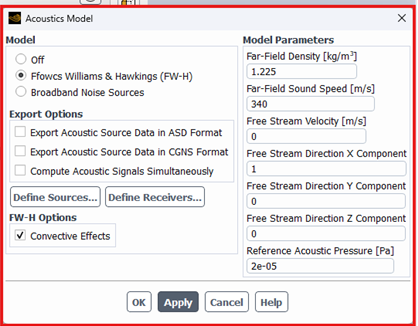
Figure 3: Locating the main Acoustics Model panel in ANSYS Fluent via the path: Problem Setup → Models → Acoustics → Edit…
Let’s look at the options in this panel. The Export Options are a major feature. You can choose to Export Acoustic Source Data in ASD Format. This saves the pressure fluctuation data from your noise-generating surfaces. As mentioned in our references, the advantage is that you can use these .asd files for post-processing later, or even in other software, without re-running the transient simulation. This is a huge time saver. The other option, Compute Acoustic Signals Simultaneously, calculates the sound at your defined receivers while the CFD simulation is running. This gives you acoustic results directly inside Fluent. For maximum flexibility, you can enable both.
Next, you must define where the noise is coming from and where you want to measure it. The Define Sources… button opens a panel where you select the surfaces that generate noise, which are called Source Zones. For example, this would be the blades of a wind turbine. You must also provide a filename for the source data. Inside this panel, the Write Frequency is an important setting. A value of 1 saves data at every time step, while a higher value saves disk space but reduces the maximum frequency you can analyze. The Define Receivers… button lets you set up virtual microphones by entering their X, Y, and Z coordinates. Fluent will then calculate the acoustic pressure signal that arrives at each of these points.
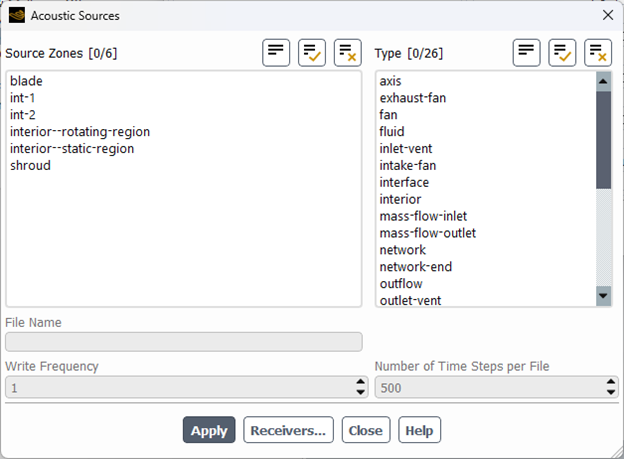
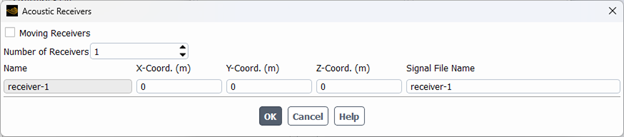
Figure 4: The Define Sources & Receivers panel in the FWH model, where users select noise-generating surfaces and define the X,Y,Z coordinates of virtual microphones.
The final step is to configure the Model Parameters. These values are essential for the accuracy of the acoustic calculation.
- The Far-Field Density and Far-Field Sound Speed must match the properties of the fluid in the far field, which for most Aeroacoustics CFD problems is air (typically 1.225 kg/m³ and 340 m/s).
- For any simulation with a mean flow, you must enable Convective Effects to improve accuracy. This adds options to define the Free Stream Velocity and Direction.
- One of the most critical settings is the Reference Acoustic Pressure. The decibel (dB) scale is relative, so this value is vital. For noise in air, this must be set to 2e-05 Pascals. Using the default Fluent value will lead to incorrect Sound Pressure Level (SPL) results.
- Finally, the Source Correlation Length is a parameter used only for 2D simulations. It is an estimated length over which the 2D noise sources are correlated in the third dimension. The final SPL result is highly dependent on this estimated value, which makes it a source of uncertainty in 2D aeroacoustic analysis. This parameter is not required for 3D simulations.
For a practical, step-by-step example of this application, you can explore our detailed CFDLAND tutorial: Aeroacoustics Analysis on a Building using the FW-H Model. This tutorial shows the complete workflow, from setting up the transient simulation in ANSYS Fluent to post-processing the sound pressure level results.


Figure 5: Applying the FWH model in ANSYS Fluent to analyze the sound pressure level on a building facade, a key simulation for architectural aeroacoustics.
Broadband Noise Sources Models
While the FWH model is excellent for detailed analysis of sound at specific locations, it requires a time-consuming transient simulation. For many engineering tasks, you first need to quickly identify where the noise is coming from. This is where the Broadband Noise Source models in ANSYS Fluent provide a huge advantage. These models are designed for fast acoustic analysis and are perfect for the early stages of design when you need to compare different concepts quickly.
The single most important highlight of this approach is its efficiency. Unlike the FWH model, the Broadband Noise models work with a steady-state flow solution. This means you can get valuable acoustic insights from a much faster RANS simulation, such as one using the k-epsilon or k-omega SST turbulence model. You simply run your steady-state simulation to convergence and then enable the acoustic model to post-process the results.
However, it is critical to understand the main limitation. As our reference explain, this method identifies the location and strength of noise sources, but it cannot predict the sound pressure signal at a distant receiver. Its purpose is to show you which parts of your geometry are the loudest, which you can see directly with contour plots of Acoustic Power Level (dB).
How to Set Up the Broadband Model in Fluent
The setup for the Broadband Noise Sources model is much simpler than for the FWH model. After your steady-state flow solution has converged, you navigate to the acoustics panel:
Problem Setup → Models → Acoustics → Edit…
Here, you select Broadband Noise Sources, which brings up the main panel for this model.

Figure 6: The main setup panel for the Broadband Noise Sources model in ANSYS Fluent, highlighting its simpler interface which works with steady-state RANS solutions.
You will immediately notice a key difference from the FWH panel: there are no buttons to define sources or receivers. The model automatically uses the entire flow field as a potential source region. The setup involves just a few key parameters.
- Reference Acoustic Power [W]: This is one of the most critical parameters and a key difference from the FWH model. The broadband model calculates acoustic power (in Watts), not pressure. For accurate decibel calculations, this value should be set to 1e-12 Watts. This is the standard reference for the threshold of human hearing. Using the wrong value will make all your decibel results incorrect.
- Number of Realizations and Number of Fourier Modes: These parameters control the statistical accuracy of the acoustic source calculations. Higher values for these settings lead to more accurate results. However, this also increases the computational time needed for the post-processing step. The default values are often a good starting point.
Getting Results from the Broadband Model
The power of the broadband model is in its visualization capabilities. You can create detailed contour plots to see noise sources. In the Contours panel, you can select Acoustics… and then plot variables like Acoustic Power Level (dB) on any surface or plane in your domain. This will clearly show you the “hotspots” of noise generation.


Figure 7: A typical output from the Broadband model: a contour plot of Acoustic Power Level (dB) on a fan, clearly identifying the blade tips as noise “hotspots”.
If you want to get a value at a specific point (to act like a virtual microphone), you must use a different method. You first need to create a geometric point in your domain. Then, you can create a Surface Report to calculate the Acoustic Power Level at that specific point. While this provides a value, it’s important to remember that the model’s primary strength is in its full-field visualization of noise sources.
Wave Equation Model
The FWH and Broadband models are powerful tools for specific tasks, but sometimes you need to see how sound behaves across your entire computational domain, not just at specific points or on surfaces. This is the unique strength of the Wave Equation model in ANSYS Fluent. This model solves the acoustic wave equation directly on your CFD mesh, giving you a full-field view of the sound pressure.
The most significant highlight of this method is that it calculates the acoustic signal at every point in your computational domain. Unlike the FWH model, where you must pre-define discrete receiver locations, the Wave Equation model treats the entire domain as a set of receivers. This allows you to create detailed contour plots of variables like Sound Pressure, showing exactly how the sound waves propagate and interact with the geometry.
However, this model comes with very specific rules and limitations that you must follow:
- It requires a transient simulation.
- A critical requirement is that you must use either the Second Order Implicit or Bounded Second Order Implicit transient formulation. The model is not even available to select if you use a first-order scheme.
- It is designed only for low Mach number flows where convective effects can be neglected. This is a key difference from the FWH model.
- The mesh must be stationary; overset meshes are not supported.
How to Set Up the Wave Equation Model in Fluent
After setting up your transient simulation with a second-order scheme, you can activate the Wave Equation model.
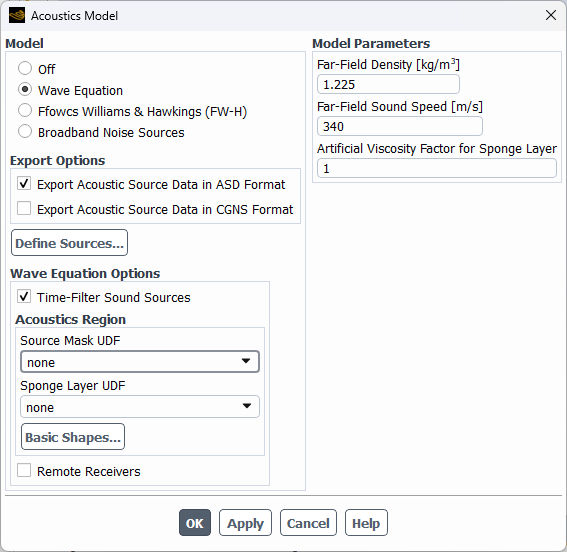
Figure 8: The setup panel for the Wave Equation model, showing key parameters like the Artificial Viscosity Factor for Sponge Layer which prevents non-physical sound reflections.
Navigate to Problem Setup → Models → Acoustics and select Wave Equation. This activates the panel with several important parameters that control the acoustic calculation.
The panel contains several important parameters:
- Model Parameters: On the right, you set the basic fluid properties. Far-Field Density and Far-Field Sound Speed must match your fluid, which is typically air (1.225 kg/m³ and 340 m/s).
- Artificial Viscosity Factor for Sponge Layer: This is a key parameter for this model. By default, walls reflect acoustic waves. To prevent non-physical reflections from open boundaries, Fluent uses a “sponge layer” that absorbs sound waves. This parameter controls the strength of that absorption. The default value is 1. Increasing this value makes the layer absorb more sound, effectively making the boundary less reflective.
- Define Sources…: Similar to the FWH model, you can click this to select specific surfaces (like cylinder-wall) that act as the source of the noise.
- Acoustics Region: This section provides more advanced ways to define sources and absorbent regions. The Basic Shapes… button is a unique feature that allows you to define simple geometric regions (like a sphere or box) and designate them as either a sound source or a sponge layer. This offers great flexibility beyond just selecting existing boundaries.
- Wave Equation Options: The Time-Filter Sound Sources option applies a time-based filter to the acoustic sources. The transcript recommends leaving this disabled for typical industrial noise simulations to ensure all source effects are captured.
The primary output from the Wave Equation model is full-field contour plots. You can go to the Contours panel and plot Acoustics… variables like Sound Pressure and Sound Potential. This gives you an unparalleled view of the sound field propagating through your domain.
A major feature, and also a limitation, is that the Wave Equation model does not have a built-in tool for calculating Sound Pressure Level (SPL) in decibels or for performing an FFT analysis.
However, we know a very powerful trick to overcome this. After your Wave Equation simulation is complete and you have exported the acoustic source data:
- Go back to the Acoustics Model panel.
- Change the model from Wave Equation to Ffowcs Williams & Hawkings (F-W-H). Do not re-run the calculation.
- Now, the Acoustic Signals… button and the FFT tool are available.
- You can define receivers, load the source data files you just created with the Wave Equation model, and use the powerful FWH post-processing tools to get SPL plots and frequency spectrums (FFT).
This clever workflow combines the full-field calculation strength of the Wave Equation model with the advanced post-processing capabilities of the FWH model.
Comparison: Which Acoustic Model Should You Use?
After exploring each of ANSYS Fluent’s main acoustic models, it’s helpful to see their features side-by-side. Each model has unique strengths and is designed for a different purpose in Aeroacoustics CFD. Choosing the correct model is the first step toward getting accurate and useful results. The table below summarizes the key differences between the Ffowcs Williams & Hawkings (FWH), Broadband, and Wave Equation models to help you make the right choice for your project.
| Feature / Aspect | Ffowcs Williams & Hawkings (FWH) | Broadband Noise Sources | Wave Equation |
| Primary Goal | Predicts sound pressure level (SPL) at specific far-field locations (receivers). | Identifies the location and strength of noise sources on and around a body. | Visualizes the propagation of sound waves throughout the entire computational domain. |
| Required Flow Solution | Transient (e.g., URANS, LES). A steady-state solution will not work. | Steady-State (e.g., k-epsilon, k-omega). This makes it very fast. | Transient (must use a second-order implicit scheme). |
| Receivers / Listeners | You must define specific X, Y, Z coordinates for each receiver before the calculation. | You do not define receivers. You can create points for reports after the calculation. | The entire computational domain acts as a receiver. |
| Main Output | FFT Plots: Sound Pressure Level (SPL) vs. Frequency for each defined receiver. | Contour Plots: Acoustic Power Level (in dB) on surfaces and planes to find “hotspots”. | Contour Plots: Sound Pressure and Sound Potential to see the acoustic field everywhere. |
| Key Strength | The most accurate method for getting SPL vs. frequency data at specific far-away points. | Very fast and efficient for diagnosing noise sources and comparing designs. | Provides a complete, full-field visualization of the sound waves propagating. |
| Key Limitation | Requires a computationally expensive transient simulation. Provides no information between receivers. | Does not propagate sound. You cannot get an SPL value at a specific far-field point. | Only for low Mach number flows. Neglects convective effects and requires a stationary mesh. |
| FFT Analysis | Excellent. The primary tool for getting detailed SPL, A-weighted SPL, and other frequency data. | Very limited. As noted, it is considered “weak” and only provides Power Spectral Density. | None built-in. Requires a clever trick: switch to the FWH panel after the run to use its FFT tool. |
This comparison highlights a fundamental trade-off in Acoustics Fluent:
- For fast, diagnostic analysis to find where noise is coming from, use the Broadband Noise Sources model with a steady-state solution.
- For accurate, detailed predictions of the sound pressure level (decibels) at a specific listener location, use the FWH model with a transient solution.
Conclusion
Understanding and controlling noise is a critical part of modern engineering, and ANSYS Fluent provides a powerful suite of tools for Aeroacoustics CFD. This guide has explored the three main acoustic models; each designed for a specific task.
The key takeaway is that the best model depends entirely on your goal.
- The Ffowcs Williams & Hawkings (FWH) model is the industry standard for accuracy. Use it when you need precise Sound Pressure Level (SPL) data in decibels at specific far-field locations. Remember, it requires a computationally intensive transient simulation.
- The Broadband Noise Sources model is the perfect diagnostic tool for speed and efficiency. By working with a simple steady-state solution, it allows you to quickly identify the loudest “hot spots” on a body, as shown in the sedan car tutorial. It tells you where the noise is, but not what its level is far away.
- The Wave Equation model gives you the most complete picture, calculating the sound field everywhere in your domain. It is excellent for visualizing how sound waves propagate but is best suited for low-speed flows with stationary meshes.
By understanding the strengths and limitations of each model, you can confidently select the right approach for your simulation, saving time and achieving your engineering goals.
We can manage your entire Aeroacoustics CFD project, from meshing and setup to post-processing and analysis. Trust our team of specialists to deliver high-quality, reliable results. Order your CFD project today at CFDLAND.