

In many of the most challenging CFD problems, parts of the model move. The most critical engineering challenges, from a check valve opening and closing to the complex motion of a self-propelled submarine, involve parts that move, rotate, and deform, so the mesh must change over time.
This is the job of the dynamic mesh model in ANSYS Fluent. It is a powerful feature that allows you to simulate problems where the shape of the computational domain changes during the simulation. It gives the software the ability to update the mesh when boundaries move or deform. This capability is also known as Moving Deforming Mesh (MDM) or simply moving mesh fluent.
You need to use the Dynamic Mesh model if your simulation includes:
- Boundaries that have prescribed rotational or translational motion (like a gear pump).
- Boundaries that deform (like a flexible diaphragm or a waving wall).
- Objects that move in response to fluid forces (like a valve being pushed open by pressure or a boat moving through water).
In all these cases, the shape of the fluid domain changes, and the mesh must adapt to provide accurate results.
If you want to practice these concepts immediately with prepared training files, you can explore our complete Dynamic Mesh CFD Simulation category.

Figure 1: Dynamic Mesh applications: a piston moving in a cylinder, a valve opening, a store separating from a wing, and a sloshing tank.
This guide will be the most complete resource you can find on Dynamic Mesh in ANSYS Fluent. We will cover everything from the fundamental governing equations to the detailed settings for every method, drawing from expert-level training materials to explain everything in a simple, understandable way.
General Equation for a Moving Mesh
Before we examine the specific tools like Smoothing or Layering, we must understand one key concept. When a mesh moves in ANSYS Fluent, the volume of each cell changes with time. To keep the simulation physically accurate, the software must account for this change. It does this by solving a special form of the standard conservation equation called the integral form of the conservation equation for a moving mesh.

This equation looks complex, but its purpose is simple. It is the same conservation law used for fixed meshes, but with two very important differences for Dynamic Mesh:
- The Volume is Now Variable in Time: The first term in the equation, which calculates the rate of change over time, now considers that the cell’s volume (V) is also changing.
- The Mesh Velocity is Included: The velocity in the flux term is now (u – ug), where u is the fluid velocity and ug is the velocity of the mesh grid itself. This means the flow is now calculated relative to the moving cell faces, which is the core principle of a Moving Mesh Fluent simulation.
To manage these changes and decide how to move the grid points, Fluent gives us three primary techniques: Smoothing, Layering, and Remeshing. In the next section, we will explore each of these in detail.
Dynamic Mesh vs. Sliding Mesh vs. MRF vs. Overset Mesh
When simulating moving parts, you must choose the correct mathematical approach. A common question is moving mesh vs dynamic mesh; they are simply two names for the same thing. However, comparing dynamic mesh to other methods is critical:
- MRF vs dynamic mesh: Multiple Reference Frame (MRF) is a steady-state approximation used for rotating zones, like simple fans. It does not physically move the mesh. If you need steady-state rotation, you can explore our Fluent MRF category. Dynamic mesh, however, actually moves the nodes physically in a transient run.
- dynamic mesh vs sliding mesh: Sliding mesh physically rotates a cell zone, but the domain volume cannot compress or expand. You can see examples of this in our Fluent Sliding Mesh category. If your domain changes volume (like a piston), you must use dynamic mesh.
- dynamic mesh vs overset mesh: Overset mesh uses zero-deformation overlapping grids. Instead of stretching cells until they break, a moving background mesh simply slides over a stationary mesh. We explain this advanced technique fully in our overset mesh in Ansys Fluent blog.
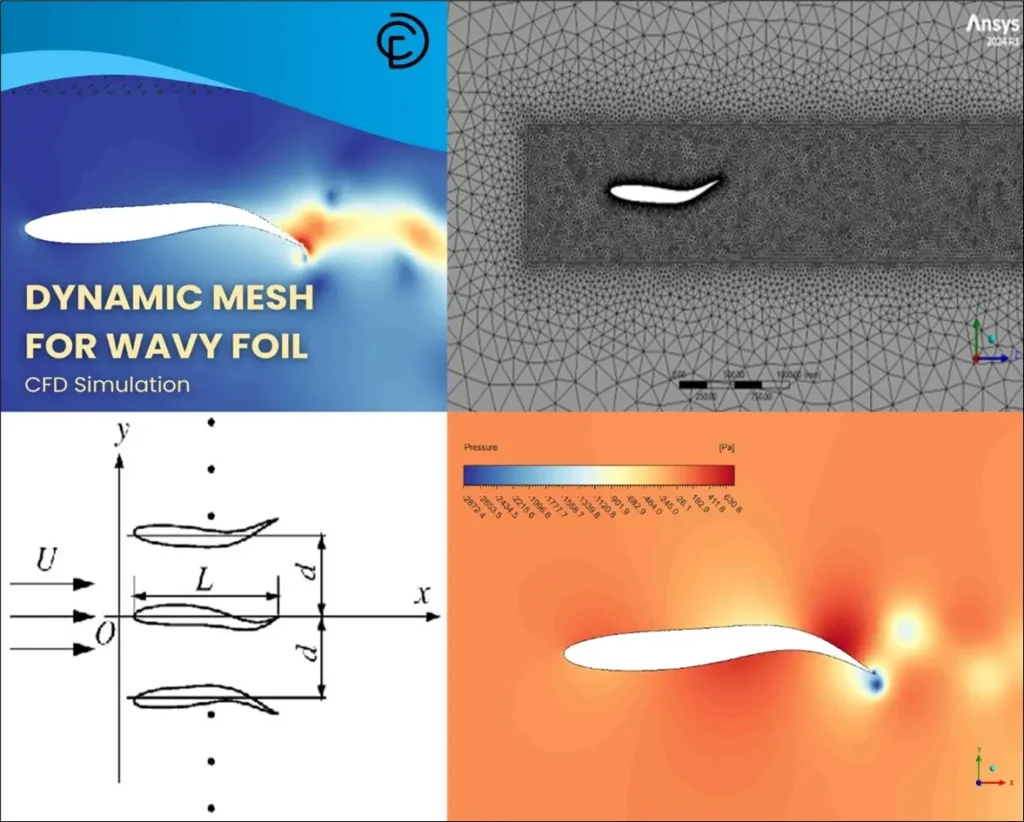
Figure 2: Dynamic Mesh for Wavy Foil CFD Simulation, A CFDLAND Dynamic Mesh project
Dynamic Mesh Methods
Now that we understand the fundamental equation governing a moving mesh, we can explore the three dynamic mesh methods ANSYS Fluent provides to manage the mesh motion: Smoothing, Layering, and Remeshing.
These three methods are the core of any Dynamic Mesh simulation. You can use them individually or combine them to handle everything from simple linear motion to complex, large-scale deformations. In this section, we will examine each method one by one, explaining its physical principles, key settings, and best use cases.

Figure 3: The main Dynamic Mesh panel in ANSYS Fluent, where the user selects the primary mesh update methods: Smoothing, Dynamic Layering, and Remeshing.
Smoothing Method: Stretching the Grid to Absorb Motion
The primary goal of dynamic mesh smoothing is to adapt to boundary movement by repositioning the internal nodes of the mesh. Critically, during smoothing, the number of cells and their connections (the topology) remain exactly the same. Think of it as a flexible net where the knots (nodes) can move, but the ropes (edges) are never cut or new ones added.
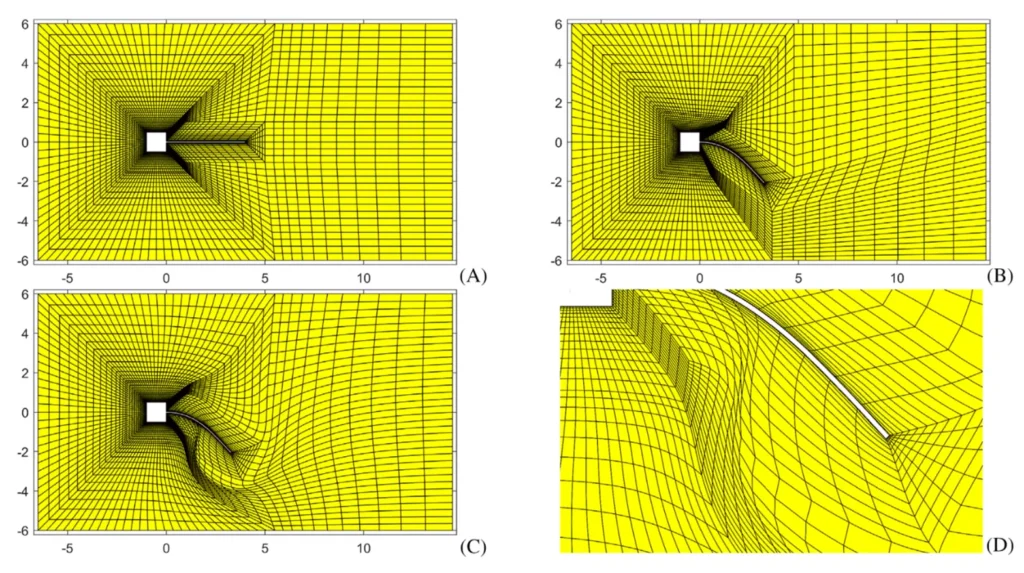
Figure 4: Flap mesh comparison. Smoothing maintains cell integrity during structural deformation, avoiding distorted elements.
This method is essential for deforming regions with triangular/tetrahedral cells and is always used to absorb motion in those zones. Fluent offers several advanced models to calculate how the nodes should move.

Figure 5: A visual comparison showing an initial tetrahedral mesh (left) and the same mesh after adapting to boundary motion using Spring-based smoothing (right). Notice the nodes have moved, but the connectivity is unchanged.

Figure 6 : The Smoothing Method panel in ANSYS Fluent, showing the available submodels including Spring-based, Diffusion-based, and Linearly Elastic Solid smoothing.
Spring-based Smoothing
Spring smoothing is the fastest method. It treats the edges between any two mesh nodes as a network of interconnected springs. A displacement at a boundary node creates a force, and this force is spread through the network based on Hooke’s Law:
F_i = \sum k_{ij} (\Delta x_j - \Delta x_i)
Here, k_ij is the spring stiffness. You control this with the Spring Constant Factor in Fluent (a value between 0 and 1).
- A value of 0 means there is no damping. The boundary movement has a stronger, more widespread effect on the internal nodes.
- A value of 1 applies the default damping level. This makes the springs stiffer near the moving boundary, which helps protect the mesh quality near the moving wall by forcing cells further away to deform more.
This method is computationally cheap but can struggle with large rotational movements, which can sometimes lead to poor-quality, tangled cells.

Figure 7: An illustration of the Spring-based smoothing concept, where mesh edges are treated as a network of interconnected springs that obey Hooke’s Law to absorb boundary motion.
Diffusion-based Smoothing
Diffusion smoothing is generally more robust and better at maintaining high-quality mesh during complex motions. It solves a diffusion equation to control how the mesh motion is “diffused” from the moving boundary into the interior. The equation is:
\nabla \cdot (\gamma \nabla u) = 0
Here, γ is the diffusion coefficient, which is the most important parameter. It controls how the motion spreads. You can control γ based on:
- Boundary Distance: This makes the mesh near the moving boundary more rigid, while the mesh further away becomes more flexible. This is excellent for protecting the mesh quality in critical near-wall regions, as it forces cells far away to do most of the deforming.
- Cell Volume: This forces the larger cells to absorb most of the deformation, which is incredibly useful for protecting the quality of a refined boundary layer mesh while allowing large, coarse cells in the far-field to do the stretching.

Figure 8: The effect of the diffusion coefficient in Diffusion-based smoothing. A low parameter (left) results in uniform deformation, while a high parameter (right) makes the mesh near the moving wall more rigid, protecting its quality.
This method is more computationally expensive than spring-based smoothing but is often a much better choice for simulations with large or complex movements.
Linearly Elastic Solid Smoothing
This is the most computationally expensive smoothing method. It treats the mesh not as a network of springs, but as a solid, elastic material and solves equations from solid mechanics. The main setting is the Poisson’s Ratio, which describes how the material deforms.
This method is very powerful but is generally only needed for specific cases where other methods fail to maintain good mesh quality. It’s important to know this method is not compatible with Boundary Layer Smoothing.
Radial Basis Function (RBF) Smoothing
The RBF method is a high-quality smoothing technique that is very effective at preserving mesh quality during large boundary deformations. It works by creating a smooth interpolation function based on the known movements of the boundary nodes and then uses that function to calculate the new positions of all the interior nodes.
This method is computationally more expensive than Spring-based smoothing but is very robust and can often handle large translations and rotations without failing. The main setting for RBF smoothing is the Number of Influences, which determines how many surrounding boundary nodes are used to calculate the movement of each interior node. There is also a great feature called local meshing, ensuring only the portion of the mesh adjacent to the moving boundary zone is smoothed. This ensures that the mesh away from the moving boundary remains undisturbed by the smoothing, and decreases the computational time required for smoothing. For instance, the following figure shows the circular boundary zone is moving to the right, and only those cells within the red dotted line are smoothed.

Figure 9: An example of local RBF (Radial Basis Function) smoothing, where only the cells within a specific region (red dotted line) adjacent to the moving boundary are updated, improving computational efficiency.
Layering Method: Adding and Removing Cell Layers
While smoothing stretches the mesh, layering dynamic mesh takes a different approach. It is used in regions with structured meshes (quadrilateral in 2D, or hexahedral/wedge in 3D) to add or remove entire layers of cells next to a moving boundary. This method is ideal for pure translational or linear motion, such as a piston moving in a cylinder or a valve opening and closing.
The key idea is that instead of stretching cells, which can lead to poor quality, the solver maintains good cell quality by creating new layers when a zone expands or deleting layers when it compresses.
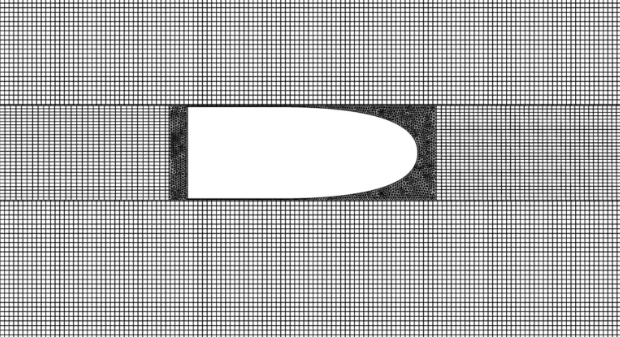

Figure 10: Layering method in Bullet Aerodynamics CFD Simulation
The decision to add or remove a layer is based on the height (h) of the cells in the layer adjacent to the moving boundary. Fluent compares this height to an Ideal Cell Height (h_ideal) that you define.

Figure 11: The Dynamic Layering settings panel in ANSYS Fluent, where users define the conditions for adding or removing cell layers using the Split Factor and Collapse Factor.
- Cell Splitting (Adding a Layer): When the boundary moves away and the adjacent cell layer (h) expands, Fluent allows it to stretch until its height exceeds a critical threshold. The condition for splitting is:
h > h_{\text{ideal}} \cdot (1 + \alpha_s)
- h: The current height of the cell layer next to the moving wall.
- h_ideal: The ideal or target cell height you want in the layering zone.
- α_s: The Split Factor, a value you set that controls the tolerance for stretching before a new layer is created.
Once this condition is met, the oversized cell layer is split into two new layers.
- Cell Collapsing (Removing a Layer): When the boundary moves inward and the adjacent cell layer (h) is compressed, Fluent removes the layer when its height drops below another critical threshold. The condition for collapsing is:
h < h_{\text{ideal}} \cdot \alpha_c
- α_c: The Collapse Factor, a value you set that determines when a layer is too small and must be merged with its neighbor.
When this happens, the entire layer of compressed cells is removed, and its nodes are merged with the next layer.

Figure 12: schematic of the Dynamic Layering process, illustrating how oversized cells are split to create new layers and compressed cells are collapsed (merged) to maintain mesh quality.
When you enable Layering, you will see two main options that control how new cell layers are created after a split:
- Height-Based: When a split occurs, the new cells are divided to create a new layer with a fixed, constant height equal to h_ideal. This is best for simple linear motion.
- Ratio-Based: When a split occurs, the cells are divided so that the ratio of the heights of the new cells to the old cells is constant everywhere. This is more useful for layering in curved domains, like a cylindrical geometry.
Additionally, dynamic Layering is powerful but has specific requirements:
- Cell Type: It can only be used on cell zones containing quadrilateral (in 2D) or hexahedral/wedge (in 3D) cells. It does not work on triangular or tetrahedral meshes.
- Boundary Shape: The cell layers must be bounded by one-sided, planar regions (unless you are using sliding interfaces).
Remeshing Method: Rebuilding the Mesh to Restore Quality
Both smoothing and layering have their limits. When a boundary moves too far or undergoes a complex rotation, smoothing can stretch cells until their quality becomes unacceptably poor. This leads to high skewness and can even cause cells with negative volume, which will crash the simulation. To solve this, you must use remeshing in fluent.
The principle of remeshing is simple: when the quality of a cell degrades beyond a certain limit, Fluent deletes the bad cells in that local area and creates a brand-new mesh to replace them. This means that, unlike smoothing, the mesh connectivity (topology) changes. Remeshing is only available for triangular (in 2D) or tetrahedral (in 3D) cells. It is the most powerful—but also the most computationally expensive—mesh update method.

Figure 13: Remeshing in action: A region of highly skewed, poor-quality tetrahedral cells (left) is automatically deleted and replaced with a new, high-quality mesh (right) to ensure simulation accuracy. (Image Source: doi.org/10.1016/j.jrmge.2021.11.001)
When is a Cell Marked for Remeshing?
Fluent marks cells for remeshing based on a set of criteria that you define. If a cell violates any of these rules, it gets flagged for replacement.
- Maximum Skewness: This is the most important quality criterion. Skewness is a measure of how distorted a cell is from its ideal shape (e.g., a perfect equilateral triangle). A value of 0 is perfect, and a value of 1 is the worst possible quality. You set a Maximum Skewness value (e.g., 0.9 for tetrahedra), and any cell that exceeds this level of distortion is remeshed.
- Minimum and Maximum Length Scale: You can define a minimum and maximum allowable cell size. If cells get compressed smaller than the minimum or stretched larger than the maximum, they are marked for remeshing.
- Sizing Function (Advanced): For more precise control, you can enable the Sizing Function. This feature creates a background grid that defines the ideal cell size throughout the deforming domain. It allows for a gradual change in cell size, protecting fine mesh near boundaries while allowing for coarser mesh further away. This is controlled by advanced parameters like the variation rate (how much the cell size can change) and the distance threshold (how quickly it changes).

Figure 14: The Remeshing panel in ANSYS Fluent, showing the key quality-based criteria for triggering a remesh, such as Maximum Skewness and the Sizing Function parameters.
Remeshing in Action: Practical Examples
Remeshing is the powerhouse behind many of the most complex Dynamic Mesh Fluent simulations. It enables the analysis of problems with large, unpredictable, and severe deformations where other methods would fail.
- For simulations with complex, non-linear deformations like a Wavy Foil Simulating Fish Swimming, remeshing works hand-in-hand with smoothing to constantly regenerate high-quality mesh around the deforming body, ensuring the simulation remains stable and accurate.
- In cases with large rotations and high-impact fluid-structure interaction, such as a Pelton Wheel Turbine Simulation, remeshing is critical to handle the complex mesh changes as the high-speed jet impacts the rotating buckets.
- For classic store separation scenarios, such as this Missile Launching Simulation, the object travels a large distance through the domain. Remeshing is the only way to manage the massive mesh deformation and maintain a valid, high-quality grid throughout the object’s trajectory.


Figure 15: Powerful applications of the Remeshing method, including a Wavy Foil simulating fish motion and a Missile Launching from an aircraft wing.
Defining the Action: Dynamic Mesh Zone Types
Now that we understand the mesh update methods (Smoothing, Layering, Remeshing), we need to tell Fluent how each part of our model should behave. This is done by assigning a Dynamic Mesh Zone Type to the different boundaries and cell zones in our simulation.

Figure 16: The Dynamic Mesh Zones panel in Fluent, where a Type (e.g., Stationary, Rigid Body, Deforming) is assigned to each boundary to define its behavior.
In the Dynamic Mesh Zones task page in Fluent, you will specify whether a region is stationary, moving as a single unreformable piece, or changing its shape. Getting these definitions right is the key to setting up any successful Dynamic Mesh simulation.
Here is a brief explanation of each zone type and its most important parameters.
| Zone Type | Primary Purpose | How Motion is Defined | Key Parameters & Settings |
| Stationary | To explicitly prevent a boundary or cell zone from moving or deforming. Crucial for defining the “fixed wall” for an adjacent layering zone. | No motion is defined. The zone is fixed in space. | Cell Height: This is the most critical parameter. It sets the h_ideal (Ideal Layer Height) for any adjacent cell zone that uses the Dynamic Layering method. |
| Rigid Body | To move a boundary or cell zone as a single, undeformable unit. All nodes in the zone move together. | Motion can be prescribed (you tell it how to move) or calculated (Fluent figures it out). Defined by: • Profile Files • User-Defined Functions (UDFs) • In-Cylinder Model • 6DOF Solver |
Motion Definition: Select the profile, UDF, or solver. Center of Gravity Location: The point about which rotation occurs. 6DOF Solver Properties: Mass, Moment of Inertia Tensor. |
| Deforming | For a boundary whose shape changes over time (e.g., a flexible membrane or a wavy surface). | The motion is not defined directly. The zone deforms to follow the updated nodes of the adjacent deforming cell zone (which uses Smoothing/Remeshing). | Geometry Definition: Defines the mathematical surface (e.g., a plane or cylinder) that the nodes must stick to after remeshing to maintain the intended shape. |
| User-Defined | For complete control over the motion of every individual node on a boundary. | The motion of each node is specified directly by a User-Defined Function using the DEFINE_GRID_MOTION macro. | The compiled UDF itself is the main setting. This is the most flexible |
Controlling Rigid Body and User-Defined Motion
When you select the Rigid Body or User-Defined zone type, you have several ways to dictate the exact motion of the geometry:
- Profile Files: A profile file dynamic mesh setup uses a simple text file containing time-history data (time, velocity, position). You use this when the motion is strictly known in advance and does not require complex mathematical equations to calculate.
- DEFINE_CG_MOTION: This is a User-Defined Function macro. DEFINE_CG_MOTION prescribes the exact velocity and position of a rigid body using custom C-code. It is heavily used in simulations like store separation (e.g., a bomb dropping from a wing), where the object accelerates based on programmed rules rather than fluid forces.
- Dynamic Mesh UDF: Using a broader dynamic mesh UDF allows you complete control over moving individual nodes or changing properties dynamically during the run.
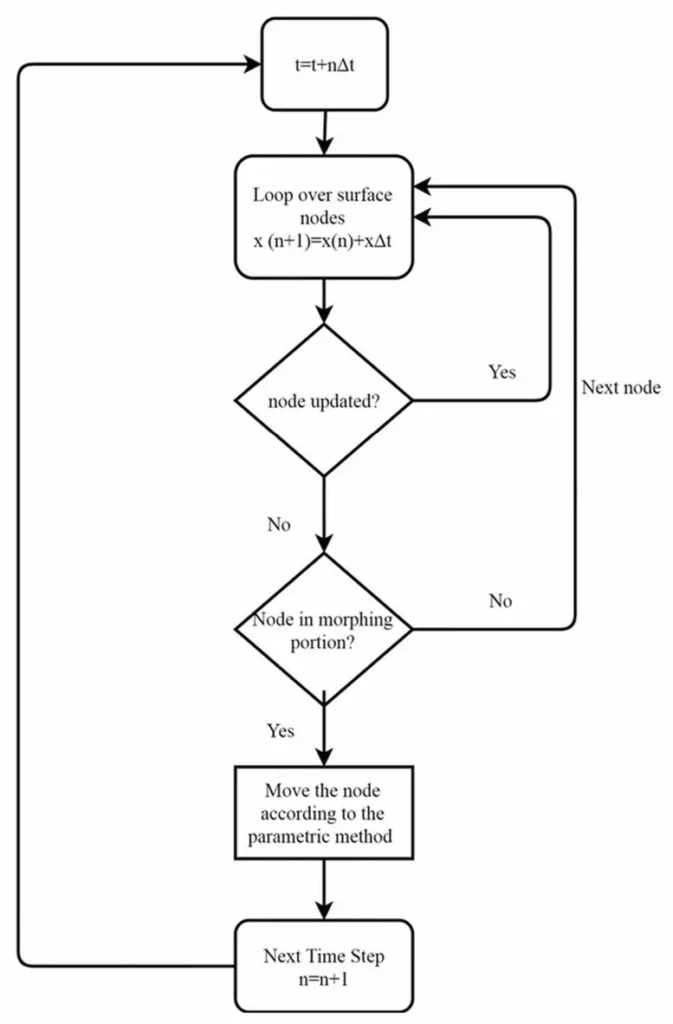
Figure 17- Algorithm used in the UDF to drive dynamic meshing in Fluent
Advanced Physics and Motion
The 6DOF Solver: When the Flow Controls the Motion
So far, we have discussed motions that are prescribed—we tell an object exactly how to move using a profile or a UDF. But what about cases where the motion is a result of the fluid forces acting on the object? This is where the powerful Six Degrees of Freedom (6DOF) Solver comes in.
The 6DOF solver allows for fully coupled motion, where Fluent calculates the trajectory of a rigid body based on the aerodynamic and hydrodynamic forces and moments it experiences. In simple terms, instead of you telling the object where to go, the fluid flow tells it where to go.
It has a huge range of applications where the fluid-structure interaction dictates the outcome.
- Simple Gravity-Driven Motion: In simulations like this Box Falling into Water, the 6DOF solver calculates the box’s trajectory as it falls under gravity and is then affected by buoyancy and drag forces from the water.
- Aerodynamically Driven Rotation: For a vertical-axis wind turbine like this Savonius Turbine Simulation, the 6DOF solver calculates the rotational speed of the turbine based purely on the torque generated by the wind hitting its blades.
- Complex Marine Applications: In advanced simulations like this Floating Boat on Water, the 6DOF solver is combined with the Volume of Fluid (VOF) multiphase model. It calculates the complex heave, pitch, and roll motions of the boat as it responds to wave forces and buoyancy, providing a realistic prediction of vessel dynamics.


Figure 18: Examples of complex fluid-structure interaction solved with the 6DOF solver, including a floating boat, a Savonius turbine, and a box falling into water, all available as tutorials on CFDLAND.
How Does the 6DOF Solver Work?
At each time step, the 6DOF solver follows a clear process:
-
- Calculate Forces & Moments: Fluent integrates the pressure and shear stress over the surface of the moving object to find the total fluid force and moment (torque).
- Add External Loads: It adds in any other forces you’ve defined, such as gravity or custom forces from a UDF (like the thrust from a rocket engine).
- Solve the Equations of Motion: It uses Newton’s Second Law to determine the object’s acceleration. The fundamental equations of rigid body motion are:
- Translation: m * a = ΣF (Mass times acceleration equals the sum of all forces).
- Rotation: I * α = ΣM (Moment of Inertia times angular acceleration equals the sum of all moments).
- Update Position & Velocity: It integrates the acceleration over the time step to calculate the new velocity and position of the object’s center of gravity.
- Move the Mesh: The dynamic mesh is updated (using smoothing and remeshing) to accommodate the new position of the body.
- Repeat: The flow field is solved again for the new position, the forces are recalculated, and the cycle continues.

Figure 19: The Six DOF Solver panel in ANSYS Fluent. This is where the essential physical properties of the moving object, such as its Mass and Moment of Inertia tensor, are defined.
Setting Up a 6DOF Simulation
To use the 6DOF solver, you need to provide Fluent with the physical properties of your object.
- Enable the Solver: In the Dynamic Mesh panel, check the box for Six Degrees of Freedom.
- Define 6DOF Properties: In the settings, you must define:
- Mass: The total mass of the object. This is mandatory for any translational motion.
- Moment of Inertia Tensor (Ixx, Iyy, Izz, etc.): This matrix describes how the object’s mass is distributed around its center of gravity and determines its resistance to rotation. This is mandatory for any rotational motion.
- Apply to a Rigid Body Zone: In the Dynamic Mesh Zones panel, you select your moving object, set its type to Rigid Body, and choose the 6DOF property you just created as its motion attribute. You also need to specify the initial location of its Center of Gravity.
For more advanced cases, such as an object whose mass changes over time or experiences complex external forces, you can use a User-Defined Function (UDF) with the DEFINE_SDOF_PROPERTIES macro for complete control.
In-Cylinder Model
One of the most common and powerful applications for Dynamic Mesh in Ansys Fluent is the simulation of internal combustion (IC) engines. To simplify this complex process, Fluent provides a specialized In-Cylinder Model.
Instead of requiring you to write a complex UDF to define the piston’s motion, this model gives you a built-in function that calculates the piston’s position based on the engine’s geometry and crank angle.


Figure 20: The key geometric parameters for the In-Cylinder model: the crank radius (rc), connecting rod length (L), and piston pin offset (x_offset) which define the engine’s kinematics.
When you activate the In-Cylinder model, Fluent uses a predefined function called piston_full. This function calculates the piston position (ps) at any given moment using the following kinematic equation:
ps = rc * cos(θc) + sqrt(L² – (x_offset + rc * sin(θc))²)
This equation precisely describes the piston’s location based on these key geometric and operational parameters that you provide:
- rc: Crank Radius – The distance from the center of the crankshaft to the crank pin.
- L: Connecting Rod Length – The length of the rod connecting the piston to the crankshaft.
- x_offset: Piston Pin Offset – The vertical offset of the piston pin, if any.
- θc: Current Crank Angle – The rotational angle of the crankshaft at the current time step.
This function automatically handles the complex sinusoidal motion of the piston as it moves between Top Dead Center (TDC), its highest point, and Bottom Dead Center (BDC), its lowest point.
Setting up an IC engine simulation using this model involves these key steps:
- Activate In-Cylinder: In the Dynamic Mesh panel, check the box for the In-Cylinder option.
- Enter Parameters: A settings panel will appear where you must input the engine’s geometric data (Crank Radius, Connecting Rod Length, etc.) and operational data (Crank Shaft Speed, Starting Crank Angle).
- Define Piston Motion: Go to the Dynamic Mesh Zones panel. Select the boundary corresponding to the piston head and set its type to Rigid Body.
- Apply the Function: From the motion dropdown list, you will now be able to select the built-in piston_full function.

Figure 21: The In-Cylinder settings panel in Fluent, where users input engine parameters like Crank Radius and Crank Shaft Speed (RPM) to automate the piston motion calculation.
Figure 22: Dynamic mesh and update nodes under equal step size for a piston-cylinder system
Common Dynamic Mesh Errors and How to Fix Them
Simulating moving boundaries pushes the solver to its limits. When the mesh undergoes severe deformation, especially in complex Fluid-Structure Interaction cases, errors are common. If you encounter crashes, here is how to resolve the most frequent issues:
- Negative Cell Volume: The negative cell volume fluent error is the most famous dynamic mesh crash. It happens when a boundary moves too far in a single time step, causing a cell to turn “inside out”. To fix a dynamic mesh negative cell volume, you must decrease your Size Remeshing Interval (forcing the solver to rebuild bad cells more frequently) or activate the Implicit Update option.
- Dynamic Mesh Update Failed: The dynamic mesh update failed warning triggers when your remeshing criteria (like Maximum Skewness) are set too strictly, or if the moving boundary crosses over a stationary wall. Check your geometry clearances.
- Time Step Size: A massive cause of failure is using a dynamic mesh time step size that is too large. You must obey the Courant number restriction. The moving boundary should never cross an entire cell volume in a single time step. Always reduce your time step size if the mesh motion fails.
Conclusion
Learning the Dynamic Mesh model in ANSYS Fluent opens the door to simulating a vast range of complex, real-world engineering problems. Throughout this comprehensive guide, we have journeyed from the fundamental concepts to the most powerful applications. By combining these tools and techniques, you now have the knowledge to accurately simulate everything from store separation and valve motion to rotating machinery and complex fluid-structure interactions.
Ready to put this knowledge into practice? The expert team at CFDLAND is here to help you succeed. You can order CFD Simulation Projects for professional assistance, or deepen your skills by enrolling in our complete Dynamic Mesh Training Course.