

ANSYS Fluent Meshing is a powerful tool for CFD meshing in ANSYS Fluent. It is used to create high-quality surface and volume meshes directly inside the Fluent environment. This approach helps users move smoothly from geometry to simulation without leaving Fluent.

Figure 1: ANSYS Fluent Meshing in Workbench for CFD meshing in ANSYS Fluent
The Fluent Meshing environment supports a clear fluent workflow, from geometry description to surface mesh, volume mesh, and mesh quality improvement. It is built around the watertight geometry workflow and produces tetrahedral, polyhedral, hexcore, and poly-hexcore meshes. Users can also prepare meshes for dynamic mesh, adaptive meshing, and complex CFD cases.
A good mesh is the foundation of every accurate CFD simulation. With ANSYS Fluent Meshing, users can control mesh size, boundary layers, and orthogonal quality, which directly affect solution accuracy and stability. This ANSYS Fluent Meshing tutorial explains the complete workflow step-by-step, using simple language and practical explanations. It is useful for students, beginners, and engineers who want to learn meshing in ANSYS Fluent correctly, and it is also a practical reference for fluent meshing usage in research where mesh quality must be defended. If you want the underlying fundamentals first, start with our free ANSYS Meshing course to learn the default tool used by many users.

Figure 2: ANSYS Fluent Meshing environment showing the task based meshing workflow used for surface mesh, volume mesh, and mesh quality control in CFD simulations.
Fluent Meshing Workflow Overview
ANSYS Fluent Meshing is a task-based meshing environment inside ANSYS Fluent. It is used to create surface and volume meshes for CFD simulations in a clear and ordered way. The user works in meshing mode, and all mesh tasks appear step-by-step in the Fluent Meshing panel. The main idea of Fluent Meshing is to guide the user from geometry to a ready CFD mesh using simple and connected tasks. This workflow helps beginners and also saves time for expert users.
In this environment, Fluent works as a powerful unstructured mesh generator. It can create tetrahedral, prism, hexcore, polyhedral, and hybrid meshes. It also supports boundary-layer meshing, mesh quality improvement, and mesh checking before solving. Fluent Meshing includes tools to repair surfaces, control mesh size, and improve mesh quality, which is very important for accurate CFD results.
Fluent Meshing supports different meshing approaches. The mesh can be created from an existing surface mesh or directly from a faceted CAD geometry. After mesh generation, the mesh is transferred directly to Fluent solution mode without leaving the software. This makes the workflow fast and clean. Because of this structured workflow, meshing in ANSYS Fluent Meshing becomes easier, more stable, and suitable for 2D and 3D CFD simulations.
Local Sizing in ANSYS Fluent Meshing: Add Local Sizing Task
Controlling mesh size is a key step in the ANSYS Fluent Meshing workflow. While global sizing defines an overall mesh resolution, local sizing in ANSYS Fluent lets you refine the mesh only where it is needed — near edges, small gaps, curved surfaces, or wake regions. Local sizing improves accuracy without increasing the total cell count excessively. In Fluent Meshing, this is done using the Add Local Sizing task.

Figure 3: Add Local Sizing task in ANSYS Fluent Meshing showing Size Control Type options used to control local mesh size for better mesh quality.
Purpose of Add Local Sizing
The Add Local Sizing task allows defining localized mesh size controls that act on specific parts of the geometry or mesh. Multiple local sizing controls can be added, each with different parameters and scopes, depending on the geometry complexity.
Important rule from the software help: Add Local Sizing must be created before the “Generate the Surface Mesh” task. Once surface meshing is completed, new local sizing controls cannot be added unless the workflow is reverted.
Activating Local Sizing
In the Would you like to add local sizing? option, select Yes to activate this task. If local refinement is not required, keep the default No, click Update, and move to the next task.
Once activated, the user must:
- Assign a Name to the sizing control
- Define a Growth Rate
- Select a Size Control Type
Size Control Types in Fluent Meshing
Fluent Meshing provides several Size Control Types, each designed for a specific meshing need.
Edge Size: The Edge Size option refines the mesh based on edge length. This option is available only if the geometry contains named edges, such as:
- Named selections from ANSYS DesignModeler
- Named edges from ANSYS SpaceClaim
This control is useful for:
- Sharp features
- Thin edges
- Leading and trailing edges
Face Size: The Face Size option refines the mesh on selected faces. A Target Mesh Size must be specified. This option is commonly used for:
- Inlets and outlets
- Walls requiring higher resolution
- Heat transfer surfaces
Body Size: The Body Size option applies a target mesh size to an entire body. This is useful when a specific region must be uniformly refined, such as:
- Rotating zones
- Solid components
- Internal flow volumes As with Face Size, a Target Mesh Size is required.
Body of Influence (BOI): The Body of Influence (BOI) option assigns a maximum mesh size to all geometry that lies inside a separate BOI body. According to the software help:
- The BOI body must not share topology with the CAD model
- The BOI body must have a unique name
- All imported BOI bodies must be assigned a local sizing control
This method is ideal for:
- Wake refinement behind turbines or vehicles
- Jet and plume regions
- Regions of expected flow gradients
If the BOI body is not fully closed, the Repair Body of Influence option can be enabled. The BOI mesh size must be smaller than the BOI geometry itself and not perfectly aligned with the CAD model to avoid topology warnings.
Face of Influence (FOI): The Face of Influence option is similar to BOI but applies to a non-closed surface. This is useful for refining regions such as:
- Wakes behind moving objects
- Free-shear layers The face is deleted during surface meshing, but its refinement effect remains visible in the volume mesh.

Figure 4: Body of Influence local sizing used to refine the mesh in a wake or high gradient flow region.
Curvature Size Control: The Curvature option refines the mesh based on surface and curve curvature. It is useful for geometries with both large and small radii. Key parameters include:
- Local Minimum Size
- Maximum Size
- Curvature Normal Angle
- Scope (faces, edges, faces and edges, or edge labels)
This control automatically refines curved regions while keeping flat areas coarse.
Proximity Size Control: The Proximity option refines the mesh based on gaps between surfaces. Main parameters:
- Local Minimum Size
- Maximum Size
- Cells Per Gap (can be a real value, minimum 0.01)
- Scope (faces, edges, faces and edges, or edge labels)
For face-based proximity, the Refine Thin Regions Ignore Orientation option helps refine gaps without over-refining thin voids. This option is recommended for fluid-only regions without thin solid parts.

Figure 5: Curvature and proximity based local sizing improving mesh resolution in small gaps and curved regions.
Applying and Visualizing Local Sizing
Local sizing can be applied by selecting:
- Zone names, or
- Label names imported from CAD
Filtering tools allow selection using text, wildcards, or boolean expressions (AND, OR, NOT). The Draw Size Box option visualizes minimum and maximum sizes as red cubes in the graphics window, helping verify correct sizing placement. Once all settings are defined, click Add Local Sizing to store the control.
Managing Multiple Local Sizing Controls
Multiple local sizing controls can be added, each appearing as a sub-task under Add Local Sizing. Each control can be edited later using Revert and Edit. If surface meshing is already completed and a new local sizing is needed, the workflow must be reverted or the geometry re-imported.
Generate Surface Mesh in Fluent Meshing
The Generate Surface Mesh task is one of the most important steps in the ANSYS Fluent Meshing workflow. In this step, Fluent creates a CFD-ready surface mesh based on the geometry and the sizing controls defined earlier. A correct surface mesh is essential for volume mesh quality and solution accuracy.
In Fluent Meshing, the surface mesh is controlled using global size settings such as Minimum Size, Maximum Size, and Growth Rate. These parameters define the smallest and largest surface elements and control how smoothly the mesh size changes across the geometry. A smooth size transition helps reduce skewness and improves mesh stability.
A key feature of this task is the use of Size Functions, especially Curvature and Proximity, or their combination.
- Curvature refines the mesh on curved surfaces. The Curvature Normal Angle controls how sensitive the mesh is to curvature. Smaller values produce finer meshes on curved regions.
- Proximity refines the mesh in narrow gaps. The Cells Per Gap option defines how many cells are generated inside small gaps, which is critical for thin geometries.
The Scope Proximity To option allows proximity control to be applied to edges, faces, or both.

Figure 6: Surface mesh generation in ANSYS Fluent Meshing using curvature and proximity size functions to capture curved regions and narrow gaps accurately.
For assembly geometries, the Ignore Proximity Across Objects option is very important. When enabled, Fluent ignores artificial gaps caused by duplicate faces or edges between bodies. This avoids unnecessary refinement, reduces cell count, and improves performance. This option is strongly recommended when shared topology or interface connections are used.
Fluent Meshing also provides visual control tools. The Draw Size Box option displays the minimum and maximum mesh sizes directly in the graphics window, allowing the user to verify sizing before meshing.
Another important option is Separate Out Boundary Zones by Angle. This setting controls whether surface zones are automatically split based on angle. It is useful when boundary conditions such as inlets, outlets, or local boundary layers are not pre-defined in the CAD model. Smaller separation angles create more zones and give more control.
For mesh robustness, Fluent can check and improve surface quality automatically. The Check Self-Intersection option detects overlapping or intersecting surface elements, which often occur when share topology is missing or when the local mesh size is too large compared to geometry thickness. This option improves reliability but can increase computation time for large models.
Additional quality controls include:
- Invoke Quality Improve, which improves highly skewed surface triangles
- Remove Steps, which removes small CAD step artifacts that may cause artificial pressure loss
- Auto Remesh to Remove Clustering, which avoids excessive node clustering and improves mesh uniformity
Fluent Meshing can also automatically assign boundary zone types based on boundary names (for example, inlet, outlet, wall, symmetry). This feature reduces manual work and helps prepare the mesh for solution mode.
After reviewing all settings, the user clicks Generate the Surface Mesh. Fluent creates the surface mesh and reports mesh statistics such as skewness, face count, and quality measures, which should always be checked before moving to the next task.

Figure 7: Example of surface mesh self intersection in Fluent Meshing when Local Mesh Size is Significantly Larger Than the Pipe Thickness or shared topology is not enabled or mesh size is too large.

Figure 8: Effect of the Remove Step option in Fluent Meshing, showing how small CAD step artifacts are removed to improve surface mesh quality.
Describe Geometry in Fluent Meshing
After generating the surface mesh, the next important step in the ANSYS Fluent Meshing workflow is Describe Geometry. In this task, the user defines what type of geometry is being meshed and how Fluent should treat fluid and solid regions. Correct geometry description is essential for region creation and boundary assignment.

Figure 9: Describe Geometry task in ANSYS Fluent Meshing showing geometry type selection, share topology option, and multizone meshing settings.
As shown in Image, the Describe Geometry task is part of the Watertight Geometry workflow. The first and most important setting is the Geometry Type. Fluent Meshing provides three options:
- The geometry consists of only solid regions
This option is used for solid models. Fluent adds tools for creating caps over openings and calculating regions. - The geometry consists of only fluid regions with no voids
This option is suitable for pure fluid domains without pockets. Fluent enables boundary update tools. - The geometry consists of both fluid and solid regions and/or voids
This is the most common option for CFD problems. Fluent activates tools for capping openings, updating boundaries, and calculating fluid regions.
Another key option is changing all fluid–fluid boundary types from “wall” to “internal”. By default, this option is set to No. If set to Yes, Fluent automatically converts interior walls between fluid regions into internal boundaries, except for named selections that include the word wall. This helps create correct internal flow connections.
The Apply Share Topology option controls whether adjacent bodies share nodes and faces. When enabled, Fluent creates a conformal mesh, which improves mesh quality and avoids surface self‑intersection. Share Topology is recommended in most CFD cases unless non‑conformal interfaces are required.
Fluent Meshing also allows the user to enable Multizone Meshing. When selected, additional tasks appear for defining multizone controls and generating structured or semi‑structured meshes. This option is useful for simple geometries but is not required for general unstructured meshing.
For advanced cases, Fluent supports non‑conformal meshes between objects. This option should only be used when overlapping or sliding interfaces are needed. It cannot be used together with Share Topology, and all non‑conformal parts must be handled carefully to ensure correct flow region extraction.

Figure 10: Comparison of conformal and non conformal mesh interfaces in ANSYS Fluent Meshing.
Once all settings are defined, the user clicks Describe Geometry to confirm the selections and move to the next Fluent Meshing task.
Update Boundaries and Regions in Fluent Meshing
After describing the geometry, the next step in the ANSYS Fluent Meshing workflow is Update Boundaries and Regions. In this task, Fluent converts surface zones and enclosed volumes into physical boundary types and fluid regions that are required for CFD simulation.
This step defines how the mesh will interact with the flow solver.
Update Boundaries
In the Update Boundaries task, Fluent lists all detected surface zones after surface meshing and geometry description. As shown in Figure 11 , each boundary has a Boundary Name and a Boundary Type.
Typical boundary types include:
- wall for solid surfaces
- velocity‑inlet for flow inlets
- pressure‑outlet for exits
- internal for interfaces between fluid zones
Fluent Meshing allows boundaries to be filtered and selected using labels or names, which is useful for large models. Correct boundary type assignment is very important because boundary conditions in the solver depend directly on this step.
For example:
- Inlets must not remain as walls
- Interfaces between fluid zones must be set as internal
- Special surfaces such as zero‑shear walls must be clearly identified
After checking and correcting boundary types, the user clicks Update Boundaries to confirm the changes.

Figure 11: Update Boundaries task in ANSYS Fluent Meshing, where surface zones are assigned physical boundary types required for CFD simulation.
Update Regions
Once boundaries are updated, Fluent automatically detects enclosed regions and lists them in the Update Regions task. This is shown in Figure 12.
Each region is assigned a Region Type, such as:
- fluid for flow domains
- dead for unwanted or unused volumes
In many cases, Fluent detects multiple regions due to geometry complexity. Regions that do not participate in the flow can be marked as dead, while active zones such as static zones and rotating zones must be set as fluid.
This step is especially important for:
- Rotating machinery
- Multiple fluid zones
- Internal flow problems
After assigning correct region types, the user clicks Update Regions. Fluent then prepares the model for volume mesh generation.
Correct boundary and region definition ensures that Fluent solves the correct physical domain.

Figure 12: Update Regions task in ANSYS Fluent Meshing, showing how enclosed volumes are classified as fluid or inactive regions before volume meshing.
Adding Boundary Layers in Fluent Meshing
Adding boundary layers is a critical step in ANSYS Fluent Meshing for CFD simulations where near‑wall flow behavior is important. Boundary layers allow Fluent to accurately capture velocity gradients, wall shear stress, heat transfer, and turbulence effects close to solid walls.
In the Watertight Geometry workflow, boundary layers are created using the Add Boundary Layers task, as shown in e. This task can be added multiple times to apply different boundary‑layer settings to different wall zones.

Figure 13: Add Boundary Layers task in ANSYS Fluent Meshing showing offset method type options and boundary layer control parameters for near wall mesh refinement.
Add Boundary Layers Task
In Figure 13, the Add Boundary Layers panel is highlighted. The user first activates boundary layer creation by setting Add Boundary Layers? to Yes. A Name is then assigned to this boundary‑layer control. This name helps organize multiple boundary‑layer definitions in complex models.
Offset Method Type
The purple highlighted box in Figure 13 shows the Offset Method Type, which controls how the boundary‑layer thickness grows away from the wall. Fluent Meshing provides four main options:
- Aspect Ratio
Controls layer thickness based on a target cell aspect ratio. This method is useful when strict control of cell shape is required. - Last Ratio
Defines the thickness of the last boundary‑layer cell relative to the core mesh. This option helps control the transition between boundary layers and the volume mesh. - Uniform
Creates boundary layers with equal thickness. This option is simple but less flexible for complex CFD cases. - Smooth Transition
This is the most commonly used option. It creates a gradual and smooth transition between boundary‑layer cells and the surrounding volume mesh, reducing skewness and improving mesh quality.
The smooth‑transition method is strongly recommended for most CFD simulations.
Boundary Layer Parameters
Below the offset method, Fluent Meshing provides key boundary‑layer parameters:
- Number of Layers
Defines how many prism (or hexa‑prism) layers are generated near the wall. - Transition Ratio
Controls how smoothly the boundary layers connect to the core mesh. - Growth Rate
Defines how fast the layer thickness increases from the wall outward. Typical values are between 1.1 and 1.3.
These parameters directly affect y⁺ values, wall resolution, and solver stability.
Add In and Grow On
In Figure 13, the Add In option is set to fluid‑regions, meaning boundary layers are added inside the fluid domain.
The Grow On option is set to selected‑labels, allowing the user to manually choose wall boundaries where boundary layers should be applied.
The list below shows available zones such as:
- blade
- inlet
- outlet
- shaft
- zero‑shear‑wall
Only the selected wall zones will receive boundary layers, giving full control over near‑wall refinement.
The Filter Text option helps quickly find zones in large models using text or wildcard filtering.
Advanced Options and Controls
The Advanced Options section provides additional control for special cases, such as:
- Limiting layer collapse
- Handling sharp corners
- Improving robustness for complex geometries
At the bottom of the panel:
- Update applies the boundary‑layer settings
- Revert and Edit allows modification
- Draw Regions visualizes where boundary layers will be generated
Once applied, the boundary‑layer task appears in the workflow and is executed automatically during volume mesh generation.
Generate the Volume Mesh in Fluent Meshing
The Generate the Volume Mesh task is the final and most important step in the ANSYS Fluent Meshing workflow. In this step, Fluent fills the previously defined fluid and solid regions with three‑dimensional mesh cells.
The volume mesh directly controls solution accuracy, convergence, and computational cost.
As shown in Figure 15, all volume meshing controls are defined inside the Generate the Volume Mesh panel.
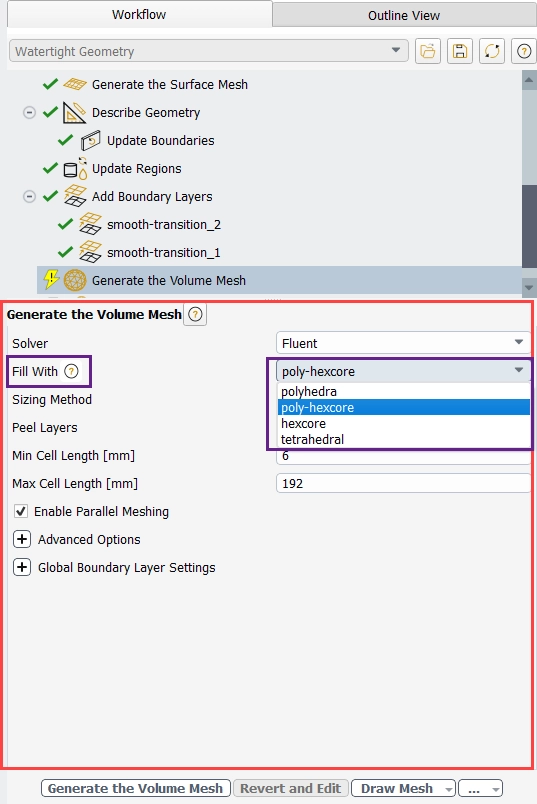
Figure 14: Generate the Volume Mesh task in ANSYS Fluent Meshing showing poly hexcore volume filling, cell length controls, and parallel meshing options.
Solver Selection
The first option is Solver. The default and recommended choice is Fluent, which generates a volume mesh fully compatible with the Fluent solver. Selecting CFX automatically restricts some meshing options to ensure solver compatibility.
Fill With
The most important highlighted option in Photo 8 is Fill With, which defines the type of mesh cells used to fill the domain. Fluent Meshing provides four main options:
- Tetrahedral
Simple and robust. Suitable for complex geometries but usually requires more cells. - Hexcore
Creates a hexahedral core with tetrahedral transition cells. Efficient for large domains. - Polyhedra
Converts tetrahedral cells into polyhedral cells. Improves convergence and accuracy. - Poly‑Hexcore (Highlighted)
Combines a hexcore interior with polyhedral transition cells.
This option is strongly recommended for most CFD simulations because it reduces cell count while maintaining high quality.
Cell Length Controls
The Min Cell Length and Max Cell Length options control the smallest and largest volume cells:
- Min Cell Length defines the smallest allowed cell size in the volume mesh.
Clicking this field displays red boxes in the graphics window, allowing visual inspection. - Max Cell Length defines the maximum allowed cell size inside the domain.
This option is critical for controlling mesh coarsening away from walls.
These parameters affect only the volume mesh, not the surface mesh.
Sizing Method
The Sizing Method controls how volume mesh sizing is evaluated:
- Global (default)
Uses one global size definition for the entire domain. - Region‑Based Sizing
Allows different maximum cell sizes for different regions.
This is useful for cases with multiple fluid or solid zones.
Peel Layers and Buffer Layers
When hexcore or poly‑hexcore is selected, additional controls appear:
- Buffer Layers
Smooth the transition between fine boundary layers and coarse core cells. - Peel Layers
Control the gap between the hexcore and the geometry.
These options improve mesh smoothness and numerical stability.
Parallel Meshing
The Enable Parallel Meshing option (enabled by default) allows Fluent to generate the volume mesh using multiple processors.
This significantly reduces meshing time for large models.
Advanced Options
Advanced options allow additional control, including:
- Quality Method (Orthogonal, Enhanced Orthogonal, Skewness)
- Persistent Renaming for stable zone names
- Avoid 1:8 Octree Transition to reduce abrupt size jumps
- Check Self‑Proximity to detect narrow gaps or overlapping surfaces
- Merge Body Label Bodies for CAD models with body labels
These options improve mesh robustness but are usually left at default values.
Generate the Volume Mesh
After all settings are defined, clicking Generate the Volume Mesh fills the domain with volume cells. Fluent then reports mesh statistics, and the mesh can be visualized using Draw Mesh.
At this point, the model is fully meshed and ready for solver setup.

Figure 15: Comparison of different volume mesh types available in Fluent Meshing.
Improve Volume Mesh and Check Mesh Quality in Fluent Meshing
After generating the volume mesh, it is essential to check and improve mesh quality before switching to solution mode. Even when a high‑quality surface mesh is used, the volume mesh may still contain highly skewed or poorly shaped cells, especially near complex boundaries. Poor volume mesh quality can cause convergence problems, inaccurate results, or solver failure.
In ANSYS Fluent Meshing, this is handled using the Improve Volume Mesh task and the Mesh Quality and Check tools, as shown in Figure 16.

Figure 16: Improve Volume Mesh task in ANSYS Fluent Meshing using orthogonal quality as the improvement criterion.
Improve Volume Mesh Task (Main Tool)
As shown in Figure 17, the Improve Volume Mesh task is available directly after Generate the Volume Mesh in the Watertight Geometry workflow.
The main settings include:
- Quality Method
The most commonly used option is Orthogonal Quality, which measures how well cell faces are aligned with cell centers. This metric is widely used because it directly affects solver stability. - Cell Quality Limit
This value defines the minimum acceptable quality. Cells below this limit will be targeted for improvement.
A typical value is 0.1–0.15. In the attached example, a limit of 0.15 is used.
When the task is executed, Fluent automatically applies several operations, such as:
- Node smoothing
- Face swapping
- Cell collapsing
- Node insertion
These operations are applied only if they improve the mesh, which ensures robustness.
Interpreting Improve Volume Mesh Results
After completion, Fluent reports the results in the console window, highlighted in Figure 17.
Typical output includes:
- Selected quality metric
- Completion time
- Final minimum mesh quality
In the attached example, the final minimum orthogonal quality is improved to approximately 0.15, which is acceptable for most CFD simulations.

Figure 17: Console output showing successful volume mesh improvement and final minimum orthogonal quality.
Detecting Mesh Quality Problems After Volume Meshing
In some cases, warnings may appear immediately after volume mesh generation, as shown in Image.
Common warnings include:
- Very low minimum orthogonal quality (for example, 0.06)
- Stair‑stepping of boundary layers, which indicates difficulty in growing prism layers near sharp edges or tight gaps
These warnings are strong indicators that mesh improvement or geometry cleanup is required before solving.
Mesh Improvement Methods Used Internally
Based on the Fluent help documentation, Fluent uses several internal techniques to improve volume mesh quality:
- Node Smoothing
Repositions nodes to reduce skewness. Methods include Laplace smoothing and skewness‑based smoothing for tetrahedral meshes. - Face Swapping
Changes tetrahedral connectivity (2–3, 3–2, or 4–4 swaps) to improve cell shapes. - Sliver Removal
Removes flat or degenerate tetrahedral cells (slivers) using smoothing, collapsing, refinement, and swapping. - Automatic Improvement
The Improve Volume Mesh command combines all these operations automatically and iteratively.
These operations are applied conservatively to avoid damaging good cells.
Checking the Mesh
After improving the mesh, a full mesh check must be performed.
Fluent’s Mesh Check verifies:
- Cell connectivity
- Face orientation (right‑handedness)
- Cell volume (no negative or zero volumes)
- Face areas
- Zone consistency
All results are printed in the console window. Any reported error must be fixed before proceeding to solution mode.
Selective Mesh Quality Checking
For large models, Fluent provides Selective Mesh Check, which allows checking:
- Only specific cell zones
- Only selected quality metrics
This approach reduces checking time while still ensuring reliability in critical regions.
ANSYS Fluent Meshing Through Practical CFDLAND Examples
All ANSYS Fluent Meshing windows and workflows presented in this article are taken from real CFD simulations developed and published on CFDLAND. These examples demonstrate how Fluent Meshing (Watertight Geometry workflow) is applied to industrial, environmental, and aerospace CFD problems, using a single, consistent meshing approach.
The examples below show that ANSYS Fluent Meshing is not case‑specific, but a general and robust meshing tool suitable for a wide range of CFD applications.
🔗 Helical Wind Turbine – Aerodynamic Meshing Reference
This example is used as the main reference case throughout the article. It demonstrates the complete Fluent Meshing workflow for a complex rotating geometry, including:
- Local sizing
- Boundary‑layer generation
- Poly‑hexcore volume meshing
- Mesh quality improvement
The helical turbine example provides a clear, step‑by‑step visualization of Fluent Meshing windows and tasks and is ideal for explaining meshing concepts.

Figure 18: Helical Wind Turbine CFD simulation example used as the reference case for all Fluent Meshing windows presented in this article (CFDLAND).
🔗 B‑2 Spirit Stealth Bomber – Advanced External Aerodynamics Meshing
This example demonstrates Fluent Meshing applied to a highly complex flying‑wing aircraft with strict aerodynamic and geometric requirements.
It highlights:
- High‑quality surface meshing on smooth blended surfaces
- Accurate boundary‑layer resolution on large aerodynamic bodies
- Robust volume meshing for high‑subsonic external flows

Figure 19: B 2 Spirit Stealth Bomber CFD simulation example used Fluent Meshing (CFDLAND).
🔗 Apache Helicopter – External Aerodynamic Meshing
This case demonstrates Fluent Meshing for complex external aerodynamics, including:
- Fuselage and rotor zones
- Large far‑field domains
- High‑quality surface and volume meshes
It highlights Fluent Meshing’s ability to handle aerospace‑scale geometries.

Figure 20: Apache Helicopter – External Aerodynamic Meshing CFD simulation example used Fluent Meshing (CFDLAND).
🔗 Dilution of Toxic Gases in Underground Ventilation
This case demonstrates Fluent Meshing for large underground domains with:
- Multiple inlets and outlets
- Long flow paths
- Species transport modeling
It highlights the use of region‑based sizing and efficient volume meshing for environmental safety simulations.
🔗 Wind Turbine Nacelle – Thermal and Internal Flow Meshing
This example focuses on internal flow and heat transfer, showing how Fluent Meshing handles:
- Enclosed fluid regions
- Internal walls and components
- Thermal boundary conditions
It demonstrates accurate meshing for conjugate heat transfer problems.
🔗 Mean Age of Air – Building Ventilation Effectiveness
This simulation shows Fluent Meshing applied to building ventilation and indoor air quality analysis.
The meshing strategy focuses on:
- Room‑scale domains
- Multiple air supply and exhaust openings
- Balanced mesh resolution for scalar transport
This example proves the suitability of Fluent Meshing for HVAC and indoor flow studies.

Figure 21: simulations on CFDLAND created using ANSYS Fluent Meshing across different engineering applications.
🔗 Propeller Blade – MRF Aerodynamic Meshing
This example focuses on rotating machinery meshing, where:
- Local refinement near blades
- Smooth transition to the core mesh
- MRF‑compatible volume meshes
Are essential for accurate aerodynamic prediction.
🔗 Industrial Cyclone Preheater – Multiphase Flow Meshing
This simulation demonstrates Fluent Meshing for gas–solid multiphase flows, highlighting:
- Large industrial geometries
- Robust volume meshing
- Mesh quality suitable for DDPM modeling
It shows that Fluent Meshing can support advanced multiphase CFD applications.
Conclusion
ANSYS Fluent Meshing provides a complete, robust, and solver‑oriented workflow for CFD mesh generation. By following the structured tasks—from surface meshing and geometry description to volume meshing and quality improvement—users can generate accurate, stable, and efficient meshes for complex CFD problems.
Using real reference examples, such as the CFDLAND helical wind turbine Fluent tutorial, helps bridge the gap between software tools and practical CFD applications. With correct meshing practices, Fluent Meshing becomes a powerful foundation for reliable CFD simulations. In case you need help for your project grid generation, keep in touch with our experts from ordering project service page.