

ANSYS ICEM CFD is a meshing software used in computational fluid dynamics (CFD). It is part of the ANSYS family, but it works as a standalone meshing tool. The main job of ICEM CFD is to create high-quality meshes for numerical simulation. ICEM CFD can generate both structured and unstructured meshes. However, it is best known for its ability to create structured hexahedral meshes using the blocking technique. This feature makes ICEM CFD different from many automatic meshing tools such as ANSYS Meshing tool.
Structured meshing with blocking gives the user strong control over mesh shape, size, and direction, a level of control that builds directly on core meshing fundamentals. This control is very important in CFD simulations where flow direction, boundary layers, and mesh quality strongly affect the results.
ICEM CFD is still widely used in many engineering fields. Typical applications include cylinders, pipes, cyclones, turbomachinery, and aerodynamic bodies. In many of these cases, a structured mesh with O-grid topology gives more accurate and stable results than an automatic unstructured mesh. This is why ANSYS ICEM CFD remains the reference tool when mesh quality cannot be compromised.

Figure 1: ANSYS ICEM CFD is mainly used for creating high-quality structured meshes using blocking, especially for circular and cylindrical geometries.
General ICEM CFD Environment and Workbench Access
ANSYS ICEM CFD is accessed through the ANSYS Workbench or as a standalone application. In most CFD workflows, users open ICEM CFD from Workbench to prepare the mesh and then send it to the solver.

Figure 2: Launching ANSYS ICEM CFD from the ANSYS Workbench environment.
After opening ICEM CFD, the user enters a dedicated meshing environment. This environment is designed only for geometry handling, blocking, and mesh generation. It does not solve the flow. The solver is used later, for example ANSYS Fluent. The ICEM CFD interface is divided into several main parts. Each part has a clear role in the meshing process.
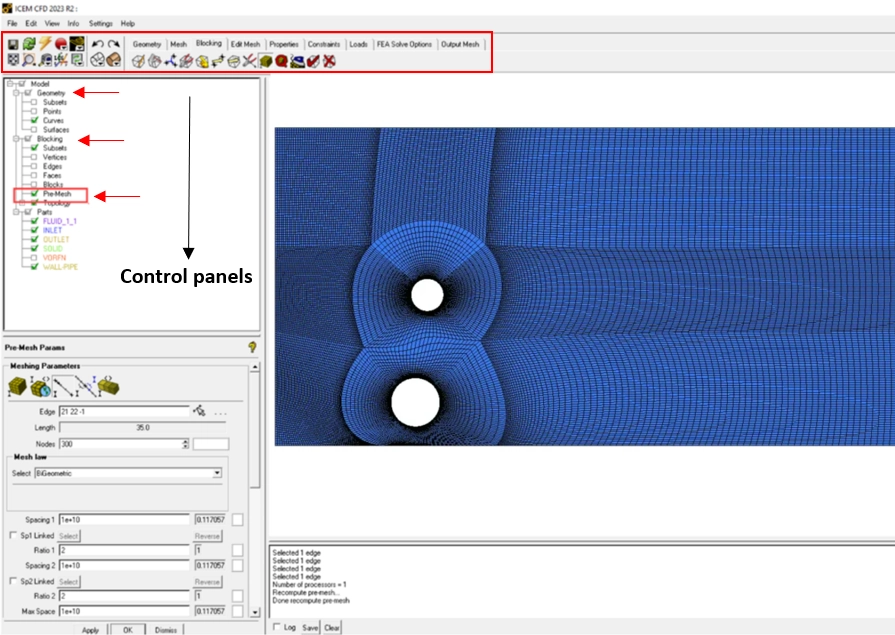 |
Figure 3: Main interface of ANSYS ICEM CFD showing the geometry, blocking, and mesh control panels.
The left side of the screen contains the tree and control panels. These panels guide the user through the workflow. The workflow usually follows this order:
geometry → blocking → pre-mesh → mesh → output.
This order helps the user build a clean and organized mesh. The center of the screen is the graphics window. This window shows the geometry, blocks, edges, and mesh. Users interact with the model directly in this window during blocking and mesh control.
ICEM CFD is a solver-independent meshing tool. This means the same mesh can be exported to different solvers. In practice, ICEM CFD is very often used with ANSYS Fluent. This connection is simple and reliable.
Mesh Types in ICEM CFD: Structured and Unstructured
ANSYS ICEM CFD can create both structured and unstructured meshes. This flexibility allows the software to be used for many CFD applications. However, the main strength of ICEM CFD is clearly in structured meshing.
An unstructured mesh is built using elements such as tetrahedra, prisms, or polyhedra. In ICEM CFD, unstructured meshes are usually created for complex geometries where structured meshing is difficult.

Figure 4: Example of an unstructured mesh generated in ANSYS ICEM CFD.
Within ICEM CFD, the trade-off is control: unstructured meshes give weaker alignment near walls, which matters most in flows with strong gradients. A structured mesh is built with an ordered arrangement of hexahedral cells. In ICEM CFD, structured meshes are created using the blocking technique. Each block represents a logical part of the geometry, and the mesh follows a clear pattern.

Figure 5: Structured mesh created in ANSYS ICEM CFD using the blocking method.
The blocking concept allows full control over mesh direction, size, and distribution. This control is very important for boundary layers, flow alignment, and mesh quality. Because of this, structured meshes often give better convergence and more accurate results. ICEM CFD is widely used because it allows precise control of structured hexahedral meshes through blocking.
Blocking Concept and O‑Grid Topology for Circular Geometries
In ANSYS ICEM CFD, blocking is the core concept used to create structured hexahedral meshes. A blocking breaks a geometry into large brick-like blocks. These blocks define the direction of grid lines and the topology of the mesh. Each block is meshed internally with a pure Cartesian hexa mesh. Later, the block faces, edges, and vertices are projected onto the geometry, so the mesh follows the real shape of the model.

Figure 6: Blocking concept in ANSYS ICEM CFD: block structure is created first, then projected onto the geometry.
Blocking Philosophy in ICEM CFD
Blocking in ICEM CFD is created independent of the geometry. This means the user first designs the mesh topology, then fits it to the geometry. In this approach, the user acts like a sculptor, shaping the mesh structure instead of automatically filling the geometry.
There are two main blocking approaches:
- Top‑down approach:
One large block is created around the entire geometry. The block is then split to capture the shape, and unused blocks are removed. - Bottom‑up approach:
Blocks are created, extruded, copied, and combined step by step, similar to laying bricks.
In practice, a combination of both methods is often used.

Figure 7: Top down and bottom up blocking strategies in ICEM CFD.
Blocking and Geometry Association
After creating the block structure, it must be associated with the geometry. This association ensures that the final mesh follows the real shape.
- Block edges are usually associated with geometry curves
- Block faces are associated with geometry surfaces
- Block vertices can be projected onto points, curves, or surfaces
This projection can be done automatically or manually, and vertices can later be moved along the geometry to better represent the shape.

Figure 8: Association of blocking edges to geometry curves in ANSYS ICEM CFD.
Why O‑Grid Topology Is Needed
For circular and cylindrical geometries, a simple Cartesian block structure is not enough. Without special topology, block corners are forced onto curved surfaces, which leads to high skewness and poor mesh quality. To solve this, ICEM CFD uses O-grid topology. An O-grid mesh is a series of blocks created in one operation. These blocks wrap around the geometry in an O-shaped pattern, aligning mesh lines with the curved surface.

Figure 9: Comparison of mesh quality for a cylindrical geometry without O-grid and with O-grid topology.
Types of O‑Grids
ICEM CFD provides three basic O‑grid types, all created using the same operation:
- O‑grid: full wrap around a circular geometry
- C‑grid: half O‑grid
- L‑grid: quarter O‑grid
These variations allow flexible meshing of full cylinders, half domains, corners, and complex curved regions.

Figure 10: Different O grid topologies in ICEM CFD: O grid, C grid, and L grid.
Figure 11 compares blocking strategies across four geometry families, circular, semicircular, quarter-circle, and filleted corners. In every case, meshes built without O-grid topology show highly skewed cells and poor alignment at curved boundaries. Introducing an O-grid restores orthogonality and produces smooth, gradual cell transitions.
The critical takeaway: refining the mesh does not fix a bad topology. Reducing cell size on a non-O-grid block leaves the skewness untouched. Only topology correction solves it.

Figure 11: Effect of blocking topology on structured mesh quality for curved and filleted geometries.
The figure shows that meshes generated without O‑grid topology lead to poor cell quality near curved boundaries, while O‑grid blocking produces well‑aligned, high‑quality structured meshes. This demonstrates that correct blocking topology, not only mesh refinement, is essential for accurate CFD simulations in ANSYS ICEM CFD. The figure is divided into multiple horizontal rows, each representing a different geometric configuration
- Circular domains
- Semi‑circular domains
- Quarter‑circle and curved corner domains
- Filleted corner geometries
In each row, the figure shows a step‑by‑step comparison between:
- A simple block‑based mesh without O‑grid, and
- A corrected blocking strategy using O‑grid topology
Green structured grids represent the resulting mesh quality for each blocking approach. Across all examples, meshes generated without O‑grid topology show:
- Highly skewed cells
- Strong distortion near curved boundaries
- Poor alignment of mesh lines with geometry
These regions are clearly labeled as “Bad quality” in the image. In contrast, when O‑grid topology is introduced, the mesh:
- Conforms smoothly to curved walls
- Maintains orthogonality
- Uses gradual cell size transition
- Produces high‑quality structured hexahedral elements
The image also highlights that:
- Smaller mesh sizes alone do not fix mesh quality problems
- Topology correction (O‑grid) is required, especially near:
- Circular walls
- Fillets
- Rounded corners
Overall, the figure demonstrates that mesh quality is primarily controlled by blocking topology, not just by mesh density.
Benefits of O‑Grid for CFD Applications
The practical benefits of O-grid topology are summarised below, along with their direct effect on CFD accuracy particularly when resolving the boundary layer near curved walls.
| Aspect | Benefit of O‑Grid Topology | CFD Impact |
| Mesh quality near walls | Reduces skewness and distortion near curved surfaces | More accurate wall shear stress and velocity gradients |
| Flow alignment | Mesh lines follow the circular geometry | Reduced numerical diffusion |
| Boundary layer control | Allows controlled cell clustering normal to the wall | Better resolution of boundary layers |
| Cell orthogonality | Improves cell angles near cylinders | Improved solver stability |
| Numerical convergence | Produces smoother residual behavior | Faster and more reliable convergence |
| Applicability | Ideal for cylinders, pipes, cyclones, ducts | Widely used in internal and external flows |
Step‑by‑Step Example: Cylinder Meshing Using ANSYS ICEM CFD
This section presents a complete and practical example of generating a high‑quality structured hexahedral mesh for a cylindrical geometry using ANSYS ICEM CFD. The workflow strictly follows the top‑down blocking approach recommended in the ICEM Hexa Meshing methodology.
Project Setup and Geometry Preparation
All CFD workflows in ANSYS begin in ANSYS Workbench, which serves as the central environment for geometry creation, meshing, and solver setup. In this project, ICEM CFD is selected as the meshing tool to generate a structured hexahedral mesh.
Using ICEM CFD inside Workbench provides a clean workflow:
- Geometry is created once
- Blocking and mesh are generated in ICEM CFD
- The mesh is transferred directly to ANSYS Fluent
This workflow is recommended when mesh quality and control are critical.

Figure 12: ANSYS Workbench environment showing the ICEM CFD system added from the Component Systems panel.
Creating a Cylindrical Geometry in DesignModeler:
The geometry used in this example is a simple cylinder, commonly found in CFD applications such as pipes, ducts, and internal flows.
The cylinder is created in ANSYS DesignModeler by:
- Drawing a circular sketch on a reference plane
- Extruding the sketch along the axial direction
Boundary names such as inlet, outlet, and wall are defined at this stage. These names are later used directly in ICEM CFD and ANSYS Fluent.

Figure 13: Cylindrical fluid domain created in ANSYS DesignModeler with inlet, outlet, and wall boundaries.
Calling ANSYS ICEM CFD from Workbench
After the geometry is complete, ANSYS ICEM CFD is launched directly from the Workbench schematic. The geometry cell is automatically linked to the ICEM CFD model cell.
This direct connection ensures:
- Correct unit transfer
- No geometry import/export errors
- A smooth transition to meshing
At this stage, ICEM CFD is used only for mesh generation.

Figure 14: ANSYS Workbench project schematic showing geometry linked to ICEM CFD and prepared for meshing.
Initial Blocking and Geometry Association
Creating the Initial Block Around the Cylinder
Structured meshing in ICEM CFD begins with blocking. A block defines the topology and direction of grid lines, independent of the geometry.
A 3D Bounding Box block is created to fully enclose the cylindrical domain:
- Blocking → Create Block
- Type: 3D Bounding Box
- Geometry selected as reference
ICEM CFD generates a single hexahedral block around the geometry.

Figure 15: Creation of the initial 3D bounding box block around the cylindrical geometry in ANSYS ICEM CFD.
Associating Block Edges and Vertices to Geometry
After blocking initialization, the block must be associated with the geometry so that the mesh follows the real shape.
- Block edges on the circular face are associated with the geometry curve
- Block vertices are projected onto the geometry using Snap Project Vertices
This ensures:
- Block edges follow the circular boundary
- Vertices lie exactly on the cylinder surface
- Mesh distortion is avoided


Figure 16: Associating block edges and vertices to the cylindrical geometry using Snap Project Vertices in ANSYS ICEM CFD.
Creating an O‑Grid Topology
O‑Grid Generation Around the Cylinder
After creating and associating the initial block, the next key operation is to generate an O‑grid topology around the cylinder. This step is essential to improve mesh quality near the curved wall. First, activate the Split Block tool from the Blocking toolbar (Marker 1). This tool allows modifying the existing block topology and is also used to generate O‑grids. From the Split Block panel, select the O‑grid Block option (Marker 2). This option creates a wrapped block structure around selected faces, which is ideal for circular and cylindrical geometries.
Next, select the main block that encloses the cylinder (Marker 3). Then, select the two circular end faces of the block (Marker 4). These faces define the direction and extent of the O‑grid along the cylinder axis. After selecting the block and faces, define the Offset value. This value controls the thickness of the O‑grid layer near the wall. A proper offset ensures good cell distribution in the radial direction. Finally, click Apply to create the O‑grid. ICEM CFD automatically splits the block and generates a ring‑shaped block structure that follows the cylindrical surface.
The step-by-step instructions for setting up are as follows:
To improve mesh quality near the curved wall, an O‑grid topology is created.
Using Split Block → O‑grid Block:
- The main block is selected
- The two circular end faces are selected
- An offset value is defined to control O‑grid thickness
ICEM CFD automatically creates a ring‑shaped block structure around the cylinder.
Benefits of O‑grid:
- Reduced skewness near curved walls
- Better boundary layer resolution
- Improved solver convergence
Rule: O‑grid must be created before defining edge parameters.

Figure 17: Creating an O grid topology around the cylindrical geometry using the Split Block → O grid option in ANSYS ICEM CFD.
Edge Parameter Definition and Pre‑Mesh Generation
Defining Edge Parameters:
After creating and associating the blocking, the next critical step is to define edge parameters. Edge parameters control how many nodes are placed on each block edge and how they are distributed. This step directly defines the mesh resolution.
First, the Pre‑Mesh Params tool is activated from the toolbar (marked as 1 in the image). This panel is used to control all meshing parameters before generating the final mesh.
Inside the Blocking tree, the Edge Params option is selected (marked as 2). This allows editing mesh settings for block edges.
At this stage, only one edge is selected (marked as 4 in the image). This is normal. ICEM CFD always displays parameters for the currently selected edge, but this does not mean the parameters should remain local.
In the Meshing Parameters panel:
- The number of nodes is defined(marked as 5)
- The edge length and spacing are shown
- The mesh law is selected
For this case, the BiGeometric mesh law is chosen. This mesh law allows smooth grading of cell size along the edge, which is very useful for CFD simulations. Edge parameters must be consistent for all parallel edges to avoid distorted and mismatched meshes.
To ensure this, the Copy Parameters option is activated (marked as 3). Then, from the Copy Method, the option “To All Parallel Edges” is selected. Finally, the parameters are applied by clicking Apply (marked as 6). This action copies the same edge parameters from the selected edge to all parallel edges automatically.
As a result:
- All block edges have consistent node distribution
- Mesh lines match at block interfaces
- Structured mesh quality is preserved
Although edge parameters are shown for one edge, they must always be applied to all corresponding edges to maintain a valid structured mesh.
The step-by-step instructions for setting up are as follows:
Edge parameters define:
- Number of nodes along each edge
- Node spacing and growth rate
Although ICEM CFD displays parameters for one selected edge, the same parameters must be applied to all corresponding edges.
Using Pre‑Mesh Params:
- Set node count and mesh law (e.g., BiGeometric)
- Use Copy Parameters → To All Parallel Edges
Key rule:
All matching edges must have identical edge parameters to maintain a valid structured mesh.

Figure 18: Defining edge parameters and copying them to all parallel edges using Pre Mesh Params in ANSYS ICEM CFD.
Pre‑Mesh Visualization and Verification
After defining edge parameters, the Pre‑Mesh is generated for inspection.
The cylindrical cross‑section is checked to verify:
- Uniform radial node distribution
- Proper alignment with the circular wall
- Smooth cell size transition
This visual check is mandatory before final mesh export.

Figure 19: Defining edge parameters and node distribution on a selected block edge using Pre Mesh settings.

Figure 20: Pre mesh view of the cylindrical cross section showing a uniform structured mesh generated using consistent edge parameters.
Saving Blocking and Pre‑Mesh Data
Once the pre‑mesh is verified, the blocking and mesh data are saved.
The message window confirms:
- Blocking data written
- Pre‑mesh generated
- Project saved successfully

Figure 21: Confirmation of successful pre mesh generation and blocking data saving in ANSYS ICEM CFD.
Checking Mesh Quality in ICEM CFD
Before exporting, the pre-mesh must be checked against quality criteria. In ICEM CFD this is done through Blocking → Pre-Mesh Quality, which plots a histogram of the selected metric.
The most relevant criteria for structured hexahedral meshes are:
| Metric | Acceptable range | Meaning |
|---|---|---|
| Determinant 2×2×2 | > 0.3 (ideally > 0.5) | Cell deformation; negative values mean inverted cells |
| Min angle | > 18° (ideally > 30°) | Internal cell angle; low values indicate skewness |
| Aspect ratio | < 100 near walls | Cell stretching, acceptable when aligned with the flow |
If the determinant falls below 0.3, the cause is almost always topologyو not node count. Adjusting the O-grid offset or repositioning vertices resolves it far more effectively than increasing mesh density.
ICEM CFD Mesh Application in Real CFDLAND Simulations
High‑quality meshing is the foundation of accurate CFD simulation. The structured hexahedral meshing workflow demonstrated in Section 5 using ANSYS ICEM CFD is directly applied in many real industrial and research‑level CFD simulations available on CFDLAND.
In this section, selected CFDLAND projects are presented to show how ICEM‑based meshing strategies improve numerical accuracy, stability, and validation quality in different physical problems.
Role of ICEM CFD in Advanced CFD Simulations
ANSYS ICEM CFD is mainly used when:
- Geometry contains cylindrical, tubular, or channel‑like domains
- Boundary layers must be resolved accurately
- Mesh skewness and numerical diffusion must be minimized
- Validation studies require mesh‑independent solutions
The blocking, O‑grid, and edge‑parameter workflow explained in Section 5 is directly applicable to the following CFDLAND simulations.
CFDLAND Case Studies Using Structured and High‑Quality Meshes
🔗 R134a Evaporation in Tube – Mass Transfer CFD Simulation
This simulation involves two‑phase evaporation inside a tube, where:
- Cylindrical geometry is dominant
- Heat and mass transfer occur near the wall
ICEM advantage: Structured mesh with O‑grid topology provides accurate wall heat flux and phase change prediction.
🔗 Slit Ribs in Channel – ANSYS CFX CFD Analysis
This case focuses on flow enhancement using ribs inside a channel.
ICEM advantage: Precise control of mesh density near ribs and walls, reducing numerical errors in turbulence modeling.
🔗 Magnetic Force Effect on Nanofluid in Tube – MHD Simulation
This study investigates nanofluid flow inside a tube under magnetic fields.
ICEM advantage: Structured hexahedral mesh ensures stable coupling between momentum, thermal, and magnetic source terms.
🔗 Turbidity Current Flow – Sediment Transport CFD Analysis
This simulation includes multiphase granular flow and sediment transport.
ICEM advantage: High‑quality mesh improves granular phase convergence and reduces numerical instability.
🔗 ANSYS Heat Sink Simulation – Thermal Performance Analysis
Heat sinks require accurate wall‑resolved thermal meshes.
ICEM advantage:
O‑grid and structured meshing improve temperature gradient resolution and thermal resistance prediction.
🔗 VOF to DPM Jet in Crossflow – Aeronautical CFD Simulation
This case combines VOF and DPM models for complex jet interaction.
ICEM advantage:
Controlled mesh alignment reduces interface smearing and improves particle tracking accuracy.
🔗 Porous Microchannel Heat Sinks – Fluent Validation Study
This is a mesh‑sensitive validation study, where accuracy is critical.
ICEM advantage:
Structured meshes enable mesh independence studies and strong agreement with experimental data.

Figure 22: ICEM CFD Mesh Application in Real CFDLAND Simulations
Conclusion
This article presented a complete and practical workflow for cylindrical mesh generation using ANSYS ICEM CFD. The process was explained step by step, starting from geometry preparation in ANSYS Workbench and ending with a validated structured pre‑mesh ready for CFD simulation.
The blocking‑based meshing approach in ICEM CFD allows full control over:
- Mesh topology
- Cell distribution
- Boundary layer resolution
- Mesh quality and consistency
By using initial blocking, geometry association, O‑grid topology, and consistent edge parameters, a high‑quality hexahedral mesh can be generated for cylindrical and channel‑type geometries.
A key point emphasized in this work is that edge parameters shown for one edge must always be applied to all corresponding edges. This rule is essential to maintain mesh compatibility, avoid distortion, and ensure solver stability.
The examples from CFDLAND simulations demonstrated that this ICEM CFD meshing strategy is not only theoretical, but is actively used in real industrial and research‑level CFD studies, including:
- Heat transfer and thermal systems
- Multiphase and mass transfer flows
- Nanofluid and MHD simulations
- Validation‑based CFD analyses
Accurate CFD results start with a correct mesh. ANSYS ICEM CFD provides the level of control required when mesh quality matters and if you want to build the mesh correctly from the start, that control begins with understanding the fundamentals. If you needs assist for your own ICEM project, keep in touch with our experts via ordering CFD project service.