

This article is a deep dive into one of the critical issues covered in our main guide to ANSYS Fluent common errors.
A floating point exception in Ansys fluent means the solver tried to do an invalid math operation. This includes dividing by zero, numerical overflow, or calculating an out-of-range value. When this happens, the solver stops instantly. Software setup mistakes cause almost all of these errors. Hardware limits are rarely the main cause.
Floating Point Exception in Fluent: 5-Minute Triage Checklist
Did your simulation just crash? Do not change your physics yet. Run through these steps first:
- Check the mesh quality report for severely skewed or non-orthogonal cells.
- Reduce the time step size or target a Courant number around 1.
- Lower the under-relaxation factors for pressure and momentum to 0.3.
- Re-initialize the solution using Hybrid Initialization.
- Verify boundary conditions (check for reversed flow warnings or incompatible pressure-pressure setups).
- Disable your User-Defined Function (UDF), re-compile, and re-run to isolate code errors.
Fluent Floating Point Exception Error Messages (What Each One Means)
Users often see specific error codes in the Fluent console. Here is what they mean and how to fix them quickly:
| Exact Error String | What it Means | First Action to Fix |
|---|---|---|
error: floating point exception |
General solver failure due to arithmetic overflow or division by zero. | Lower under-relaxation factors and check mesh quality. |
Error at Node 0: floating point exception |
The master node crashed in parallel processing, usually during initialization or early iterations. | Switch to Hybrid Initialization or lower the Courant number. |
error object: #f |
A generic Scheme-level syntax or solver failure often linked to missing inputs or corrupted case files. | Rebuild the setup or check for invalid material inputs (e.g., negative density). |
error object: (((constant . 0) (profile "" ""))) fluent |
Missing boundary condition profiles or a completely empty UDF hook. | Re-assign boundary values or re-hook the correct UDF file. |
floating point exception core dumped |
Severe memory or precision crash causing a total application abort (common in Linux). | Switch to the Double Precision solver or increase available RAM. |
Floating Point Exception Error in ANSYS Fluent
The Fluent floating point exception is a very common CFD error. It happens in steady state, transient, and dynamic mesh runs. There are two main problems that cause this error: software issues and hardware issues (Fig.1).
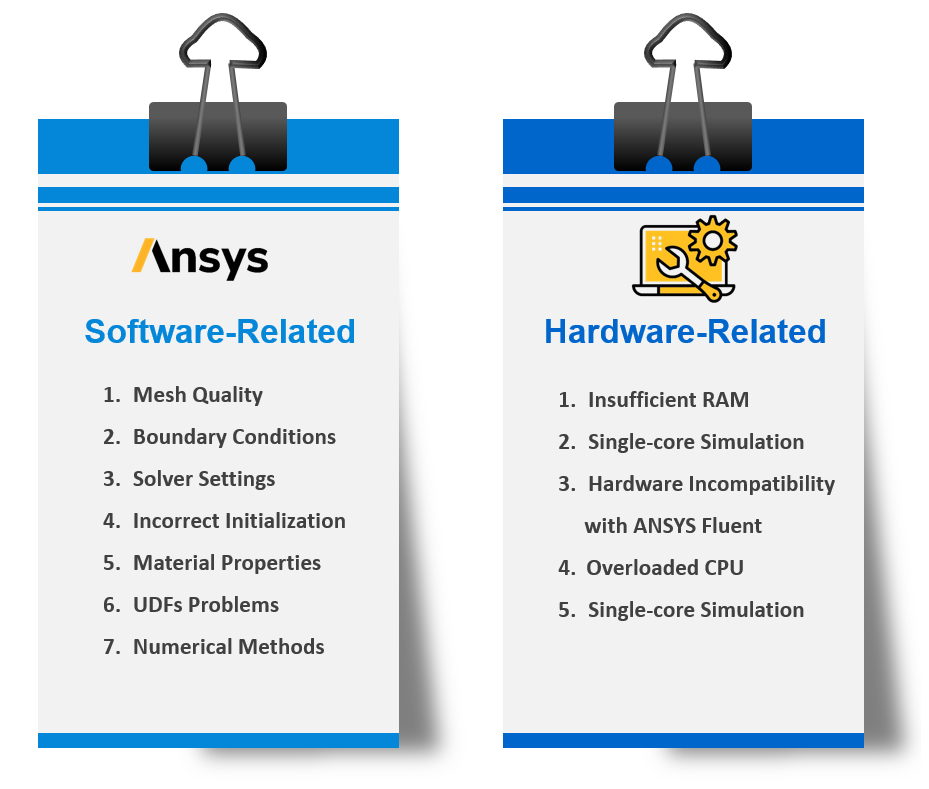
Figure 1- Causes of Floating Point Exceptions in ANSYS Fluent
This error shows up in the console in a few different ways:
- Error at Node 0: Floating Point Exception: The main computing node failed (Fig.2).
- The solver crashes the moment you click initialize.
- Residuals blow up, and the solution diverges.
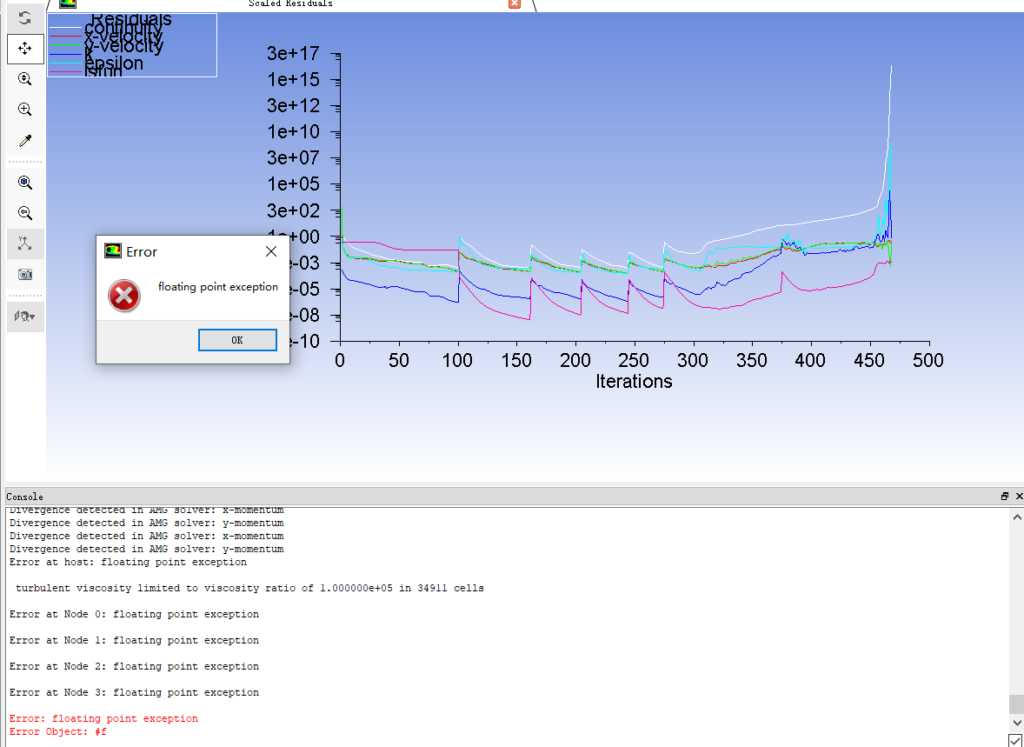
Figure 2- ANSYS Fluent Floating Point Exception Error
Software-Related Causes
Software setup mistakes are the number one cause of the Ansys fluent floating point exception error. Bad mesh quality, wrong boundary conditions, and poor solver settings will crash your run. Bad material properties also cause instant crashes. For example, if you input a negative density or a physically impossible specific heat (Cp), the solver will try to divide by zero. Always double-check your fluid properties. We will now look at each of these software problems and show you how to fix them.
Mesh Quality in ANSYS Fluent
Bad mesh quality is the fastest way to trigger a floating point exception. Distorted cells force the solver to calculate infinite math gradients, which crashes the software. To learn the basics of meshing, read our full guide on mesh quality metrics in ANSYS Fluent.
Skewness shows how much a cell deforms from a perfect shape. A skewness of 0 is perfect (Fig.3). High skewness causes math errors (Fig.4). To stop the solver from crashing, your maximum skewness must stay < 0.95. A value below 0.90 is even safer.

Figure 3- Skewness Mesh Metrics Spectrum
![Figure 4- Impact of Skewness on Mesh Quality in CFD Simulations[1]](https://cfdland.com/wp-content/uploads/2025/03/5-2.png "image of Floating Point Exception in ANSYS Fluent: Causes & Fixes")
Figure 4- Impact of Skewness on Mesh Quality in CFD Simulations [1]
![Figure 5- Iterative Skewness Correction in Mesh Generation[1]](https://cfdland.com/wp-content/uploads/2025/03/6-2.png "image of Floating Point Exception in ANSYS Fluent: Causes & Fixes")
Figure 5- Iterative Skewness Correction in Mesh Generation [1]
Orthogonality looks at the angle between the cell face normal and the line connecting two cell centers (Fig.6).
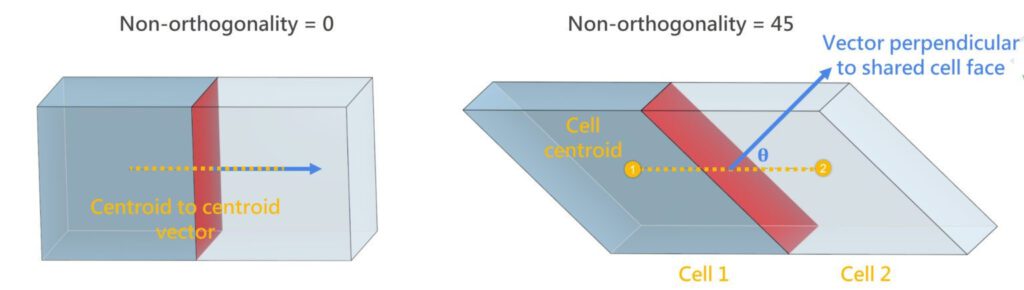
Figure 6- Representation of non-orthogonality mesh quality metric based on cell centroid and shared cell face
To avoid crashes, this angle must be close to 0°. A 0° angle gives you a perfect orthogonal quality of 1.0. Never let this angle reach 90°. A 90° angle gives an orthogonal quality of 0, which guarantees a divide-by-zero crash. To keep the solver stable, your minimum orthogonal quality must be > 0.1.
Table 1: Comparison of Orthogonality and Non-Orthogonality in CFD Meshes (Keep Table 1 exactly as it is. It correctly states 0° is ideal).
|
Criterion |
Orthogonality |
Non-Orthogonality |
|
Angle Between Vectors |
Close to 0° (Ideal) |
Close to 90° (Poor) |
|
Non-Orthogonality Factor |
0 (Perfect) |
1 (Worst) |
|
Numerical Accuracy |
High (Stable solution) |
Low (Errors increase) |
|
Correction Needed? |
No |
Yes (Correction schemes required) |
|
Computational Cost |
Lower |
Higher (Due to corrections) |
|
Mesh Quality |
Good |
Poor (May need refinement) |
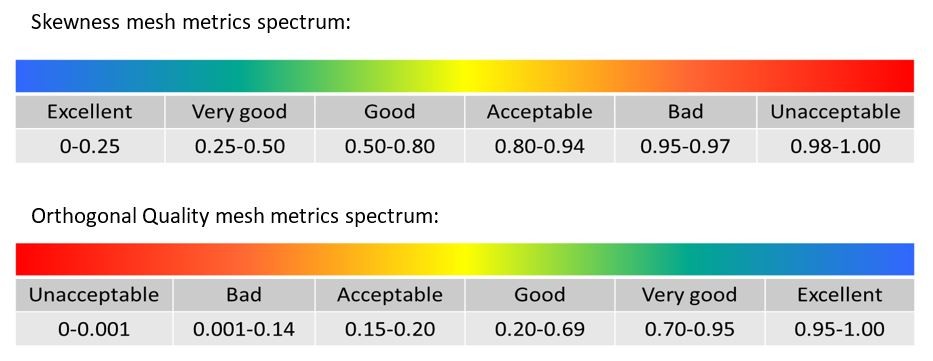
Figure 7- Orthogonal Quality Mesh Metric Spectrum
In ANSYS Fluent, smoothness is a key criterion for high-quality meshing. Cells next to each other should be similar in size (Fig.8). If a small cell sits right next to a massive cell, the solver will crash. The growth ratio between neighboring cells must be < 2. A ratio of 1.2 is best.
![Figure 8- Smoothness Criteria in Mesh[2]](https://cfdland.com/wp-content/uploads/2025/03/9.jpg "image of Floating Point Exception in ANSYS Fluent: Causes & Fixes")
Figure 8- Smoothness Criteria in Mesh [2]
![Figure 9- The Importance of Smoothed Meshes for Improved Element Distribution[3]](https://cfdland.com/wp-content/uploads/2025/03/1-1024x460.jpg "image of Floating Point Exception in ANSYS Fluent: Causes & Fixes")
Figure 9- The Importance of Smoothed Meshes for Improved Element Distribution [3]
Aspect ratio compares the longest edge of a cell to its shortest edge (Fig.10). High aspect ratios are fine inside a boundary layer. However, highly stretched cells in turbulent areas (like jets or wakes) will destroy your math matrix and trigger an exception.
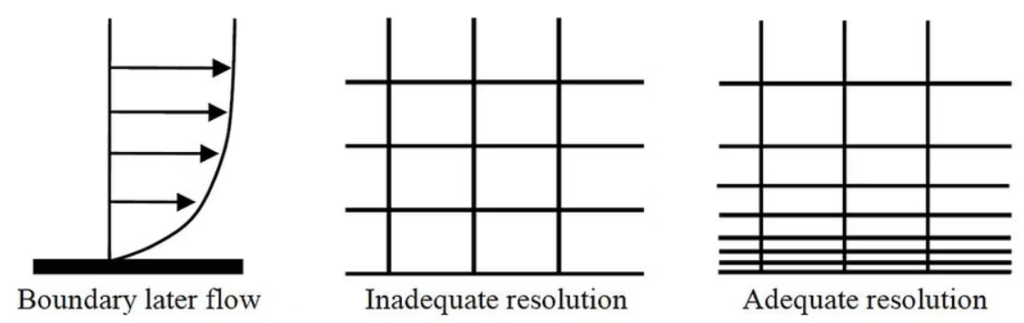
Figure 10- – The Importance of Aspect Ratio near the Boundary Layer
![Figure 11- Differently shaped cells with aspect ratios of 1.0 and their respective high aspect ratio cells[4]](https://cfdland.com/wp-content/uploads/2025/03/3-1.png "image of Floating Point Exception in ANSYS Fluent: Causes & Fixes")
Figure 11- Differently shaped cells with aspect ratios of 1.0 and their respective high aspect ratio cells[4]
Poor Mesh Quality: Solution
- Use Fluent’s Mesh Quality Diagnostic Tools to find the bad cells (Fig.12).
- Make the mesh smaller in critical areas with high flow gradients.
- Ensure the mesh covers the whole geometry without any gaps.
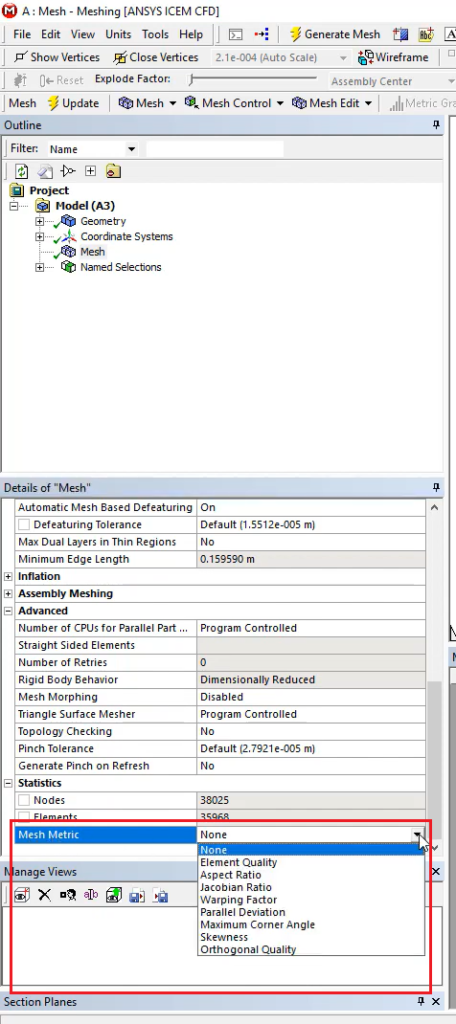
Figure 12- Mesh Quality Metrics Selection in ANSYS ICEM CFD for Identifying Element Quality and Potential Issues
Incorrect Boundary Conditions
Wrong boundary settings will quickly crash the solver. If your setup is physically impossible, the math will fail.
Examples of Bad Setups:
- Using a velocity inlet but setting the flow to zero.
- Typing in extreme, unrealistic pressure values.
- Getting severe “reversed flow” warnings at a pressure outlet.
- Using pressure inlets and pressure outlets incorrectly on an open domain.
Solution: Check your setup against real-world physics. To understand exactly how to apply these correctly, read our full guide on ANSYS Fluent Boundary Conditions.
Solver Settings and Numerical Methods
Bad solver settings cause many crashes. Do not guess your inputs.
Solutions:
- Time Step Size: Do not use random time steps. Use a Courant Number (CFL) value of about 1. If the solver crashes, cut your time step in half.
- Solver Type: Use the PISO method for transient flows. It keeps the math stable.
- Relaxation Factors: Drop your momentum and pressure under-relaxation factors to 0.3 for the first 100 iterations. Doing this slows down the math and heavily improves ANSYS Fluent Convergence.
Incorrect Initialization
A bad initial guess can cause an instant crash at iteration zero.
Common Issues:
- Extreme starting velocity or pressure fields.
- Wrong turbulence values.
Solution: Always use Hybrid Initialization. It softens the starting math. Ensure your phase volume fractions are correct before you hit calculate. If you wanna know more about each type of initialization method in Ansys, read our guide.
User-Defined Functions (UDFs)
Bad C-code will crash your simulation. If your UDF divides by zero or reads the wrong memory, it will trigger an exception.
Solution: Test your UDFs on very simple 2D cases first. If you are new to coding, start by reading our Ansys Fluent UDF.
To see a perfect, working example, check out our commercial tutorial: Slip and Non-slip Flow Inside a 2D Microchannel CFD Simulation Using UDF (Fig.13). This will level up your practical skills.
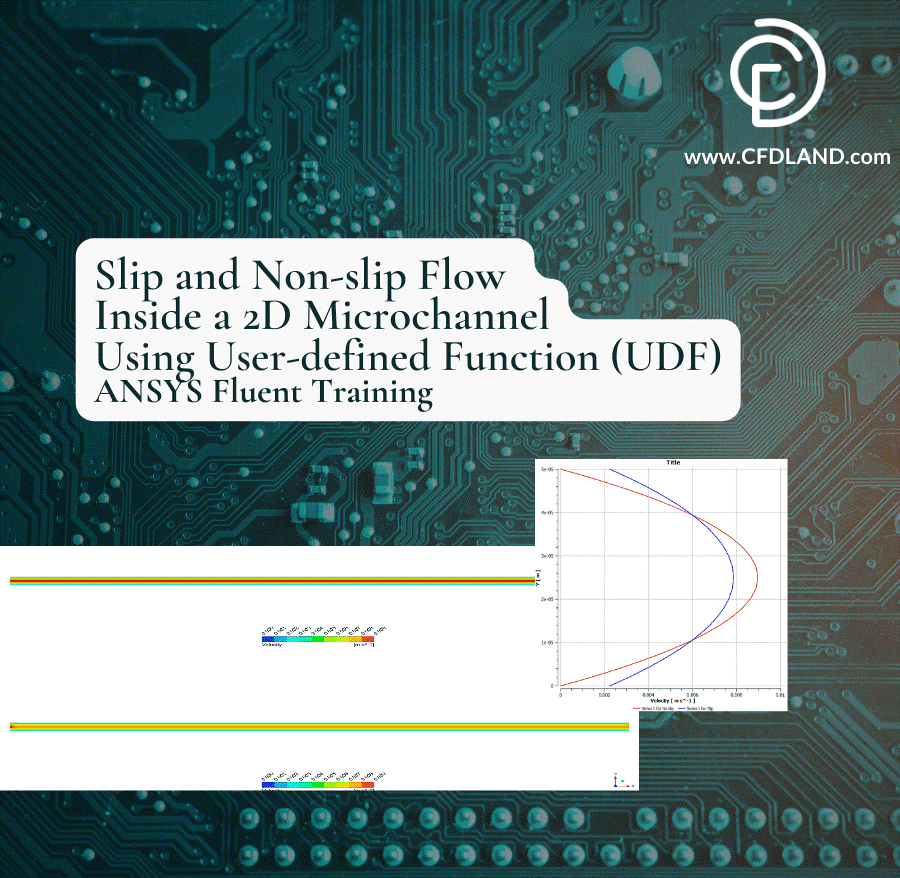
Figure 13- Slip and Non-slip Flow inside a 2D Microchannel CFD Simulation
Single vs Double Precision
Some physics are very stiff. High pressure ratios, acoustics, and multiphase flows create extreme numbers. The standard solver cannot hold these huge numbers, causing an overflow. To fix this, switch to ANSYS Fluent double precision. It uses more RAM, but it stops the math from breaking.
Floating Point Exception in Dynamic Mesh Simulations
In a dynamic mesh simulation, cells move and deform. If a cell collapses and gets a negative volume, the solver crashes instantly. To stop this, reduce your time step and check your remeshing rules.
Hardware-Related Causes
Hardware limits can cause crashes, but this is rare. Look at your hardware only if your software setup is perfect.
Insufficient Memory (RAM) If your computer runs out of RAM while solving the math matrix, Fluent will crash and give a core dumped error. The basic rule is: you need ~1 GB of RAM per 1 million cells. Running double-precision or multiphase models uses even more RAM.
Solution: Make sure you have at least 16 GB of RAM. Use parallel computing to split the work across your CPU cores.
Conclusion
The floating point exception in ANSYS Fluent is frustrating but easy to fix. Software mistakes cause most of these errors. Always check your mesh quality first. Next, lower your Courant number or time step. Only look at your RAM or hardware if your settings and UDFs are perfect.
FAQs
- What is a Floating Point Exception in ANSYS Fluent?
A numerical error caused by invalid operations like division by zero or overflow.
- What causes Floating Point Exception errors?
Poor mesh quality, incorrect solver settings, unstable boundary conditions, or insufficient hardware resources.
- How can I fix Floating Point Exceptions due to mesh quality?
Improve skewness, orthogonality, aspect ratio, and refine the mesh in critical regions.
- How does insufficient RAM cause Floating Point Exception errors?
If memory is too low, the solver may fail to process data, causing instability.
Reference
[1] M. Song, C. Li, X. Guo, and J. Liu, “An adaptive gradient correction method based on mesh skewness for finite volume fluid dynamics simulations,” Physics of Fluids, vol. 37, no. 1, 2025.
[2] S. Shedage, “Numerical investigation of micro scale flows in narrow gaps,” PhD thesis, NITIE-National Institute of Industrial Engineering, 12 2014.
[3] N. Wang, L. Zhang, and X. Deng, “Unstructured surface mesh smoothing method based on deep reinforcement learning,” Computational Mechanics, vol. 73, no. 2, pp. 341-364, 2024.
[4] A. Lintermann, “Computational meshing for CFD simulations,” Clinical and biomedical engineering in the human nose: A computational fluid dynamics approach, pp. 85-115, 2021.